Live Project
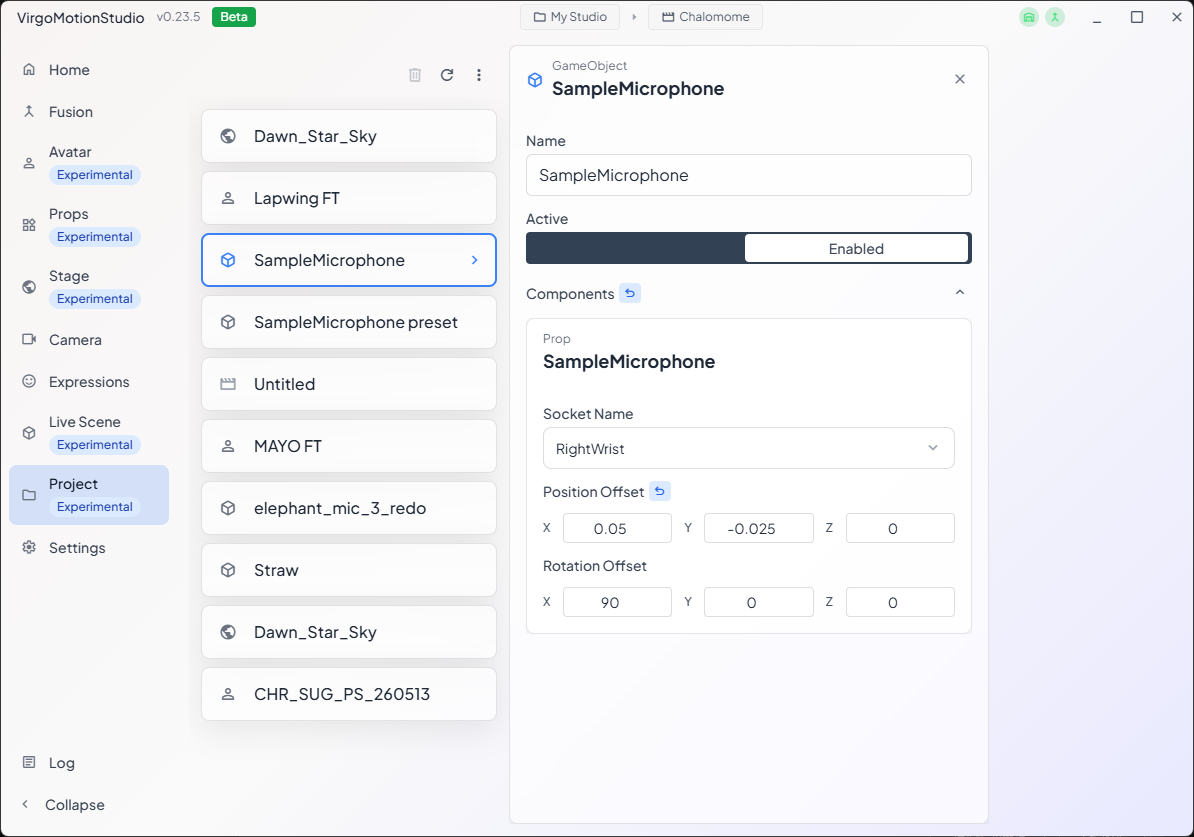
A Live Project is a folder on disk where you keep the assets used in your stream (sets, props, avatars, and live scenes) together. On the "Live Project" page of the Remote app, you open a single folder, and its contents appear in a list so you can load and manage them all in one place.
What Is a Live Project?
A live project is a single folder on the file system. You can place the following kinds of files in it.
| Kind | File | Related page |
|---|---|---|
| Set | .set.lsb | Stage |
| Prop | .prop.lsb / .glb / .gltf | Props |
| Avatar | .vrm / .avatar.lsb | — |
| Live Scene | .live.json | Live Scenes |
When you open a live project folder, the Studio app crawls the folder and registers the supported files in the list. At this point they are not loaded yet (unloaded state); you select the ones you need and load them to use them.
Opening a Live Project
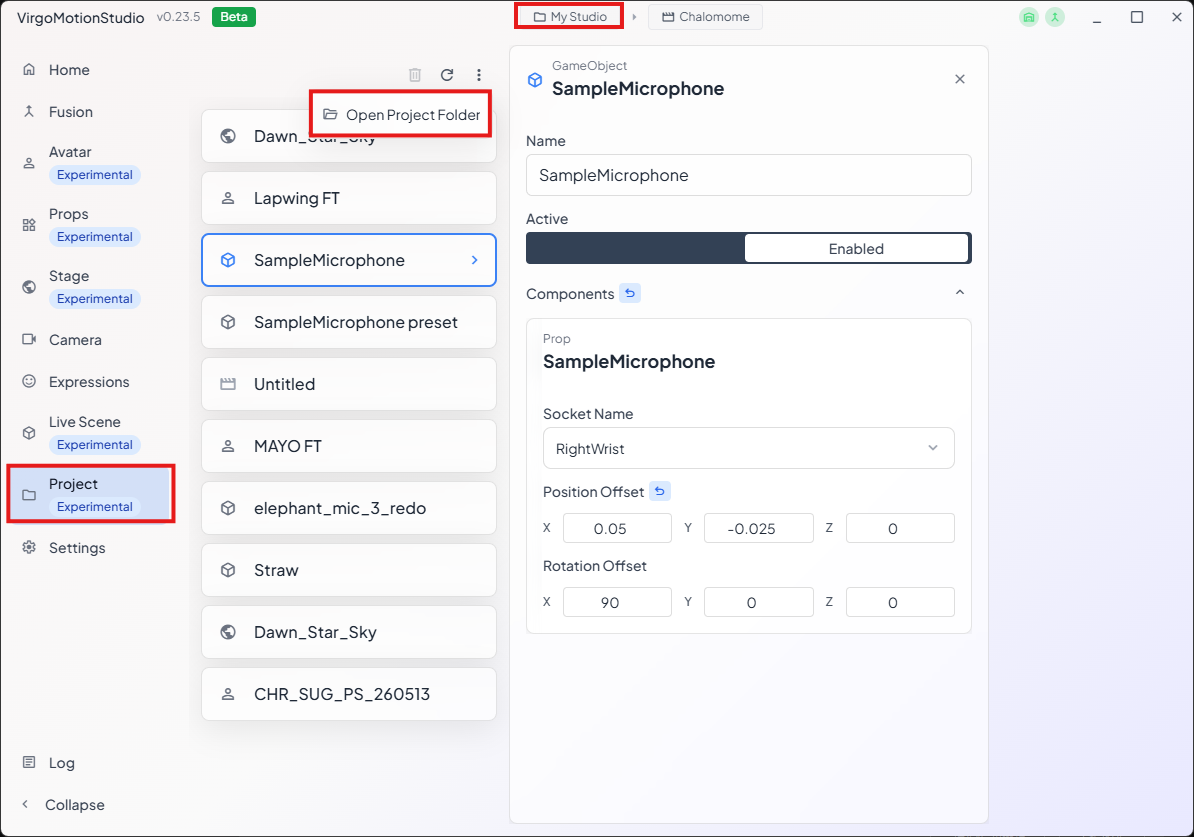
- From the three-dot menu at the top of the page, choose Open Live Project Folder.
- In the folder picker, select the folder that holds your assets.
- The path of the opened folder is shown under the Live Project Folder heading, and its contents appear in the list.
You can also access it from the live project name in the title bar.
Relationship to Other Pages
When you open a live project, the assets registered here are also fed to the Stage, Props, and Avatar pages.
- Live Project page … a single list that handles every kind together (the master view).
- Stage … the page that handles only sets (
.set.lsb). - Props … the page that handles only props (
.prop.lsb/.glb). - Avatar … the page that handles only avatars.
In other words, each dedicated page is a view filtered by kind of the assets in your live project. As long as a live project is open, you can pull the same materials from any of these pages.