Stage
A Stage is the entire 3D space that serves as the stage for your stream.
You build a single stage by loading Sets (.set.lsb) and, when needed, layering several of them together.
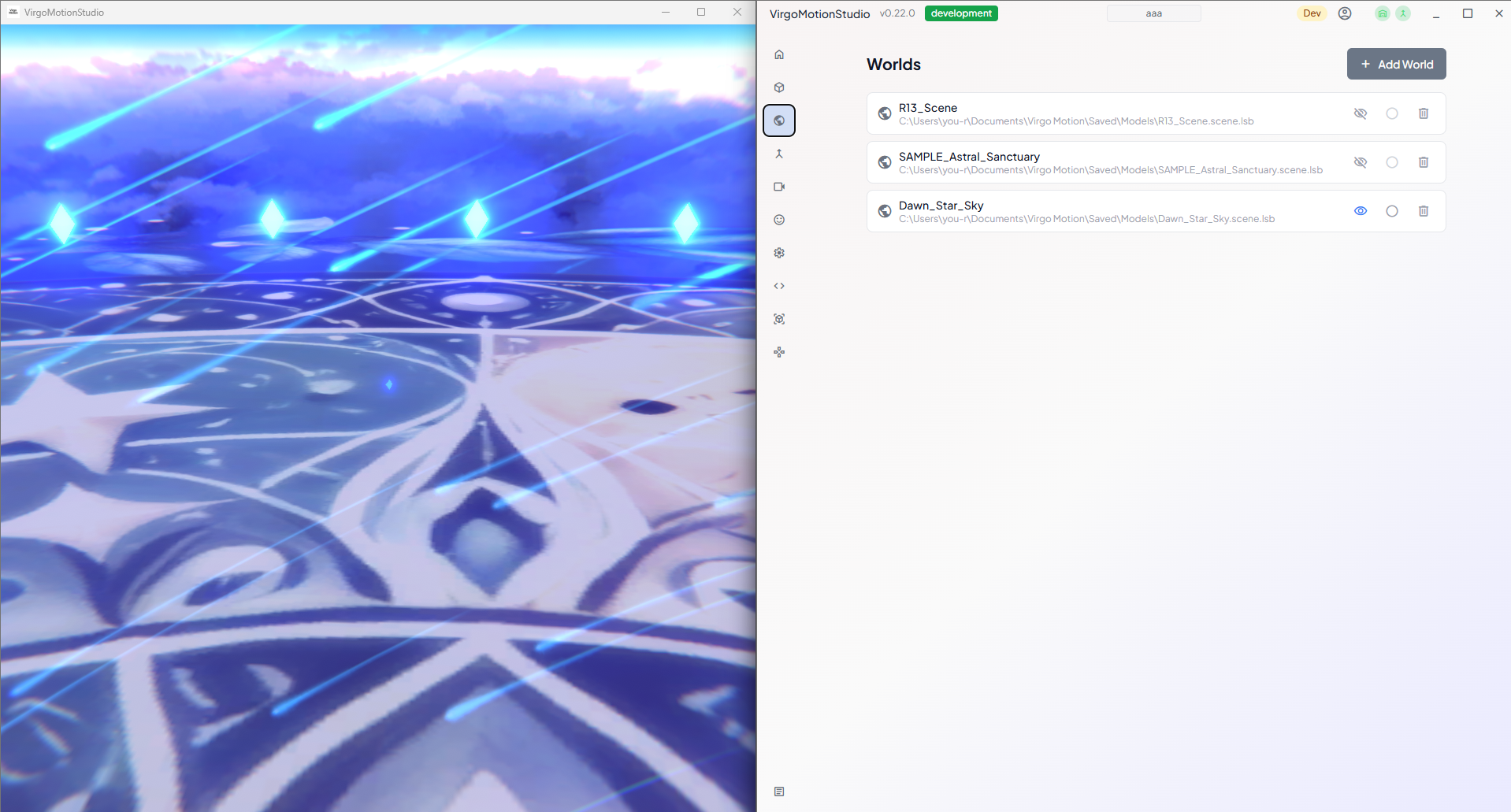
On the Stage page of the Remote app, you manage the sets that make up your stage.
Sets, Stages, and Live Scenes
These terms form a nested relationship: "Live Scene > Stage > Set."
Live Scene (the entire streaming setup, saved to a file)
└─ Stage (the whole stage, composed from the loaded sets)
   ├─ Set  room.set.lsb     ← active (the lighting reference)
   ├─ Set  effect.set.lsb
   └─ Set  prop.set.lsb
| Term | Role | Form |
|---|---|---|
| Live Scene | The top-level mechanism that saves and restores your entire streaming setup (avatar, camera, lights, background, expressions, input, and so on). It also includes which sets are loaded — that is, the makeup of the stage. | A file (.live.json) |
| Stage | The whole 3D space that serves as the stage, assembled within a live scene. | The set of currently loaded sets |
| Set | A building block of the stage. A single space built in Unity and exported as a .set.lsb. | A file (.set.lsb) |
A stage is not a fixed file; it is the composite result determined by which sets you have loaded. For example, if you load a "room set" and an "effects set" at the same time, the two layered together form a single stage.
A live scene is a larger container that holds not just the stage but your whole streaming setup, such as the avatar and camera. A set (.set.lsb), on the other hand, is one of the building blocks used to assemble the stage.
It helps to frame it this way: a live scene is "the entire streaming setup (who, where, and how it's shown)," a stage is the "where (the stage itself)" part of it, and a set is a "block" used to build that stage.
Sets (.set.lsb) are exported from the SDK's Unity environment. For how to create one, see
Export a Set.
Managing Sets
Set operations are only available while connected to the Studio app. When not connected, it shows "Connect to a Studio to manage sets."
Adding a Set
From Add Set in the top right of the page, open the file picker and choose a .set.lsb file.
The added set is loaded right away (loaded state) and appears in the list.
Load / Unload
Use the eye icon on each set to toggle between loading (load) and removing it (unload). Sets are loaded additively, so you can keep multiple sets loaded to compose a single stage.

Setting a Set Active
For a loaded set, you can switch it to active with the radio-button icon. The active set serves as the reference for lighting and for newly placed objects. Only loaded sets can be made active.

When you unload the active set, the original reference set becomes active again.
Removing
Use the trash icon to remove a set from the list. If it is currently loaded, it is unloaded automatically before being removed.
Saving and Restoring
The list of loaded sets is saved in the live scene. When you launch the app and the previous live scene is restored, the sets appear in the list in an unloaded state, and you reload the ones you need to reassemble your stage.