Warudo Plugin
Please verify that VirgoMotionStudio is working first.
WarudoPlugin will not work without entering a license key.
This guide assumes you are using a model that supports PerfectSync. Other models will have incomplete expressions, blinking, and eye movement. The data from VirgoMotion is still available, so you can resolve these individually using blueprints.
Overview
A plugin for using VirgoMotion's motion capture features in Warudo.
Quick Start
Installing the Warudo Plugin
Copy VirgoMotionStudio/Tools/WarudoPlugin/VirgoMotion.warudo to the Plugins folder in the Warudo data folder.
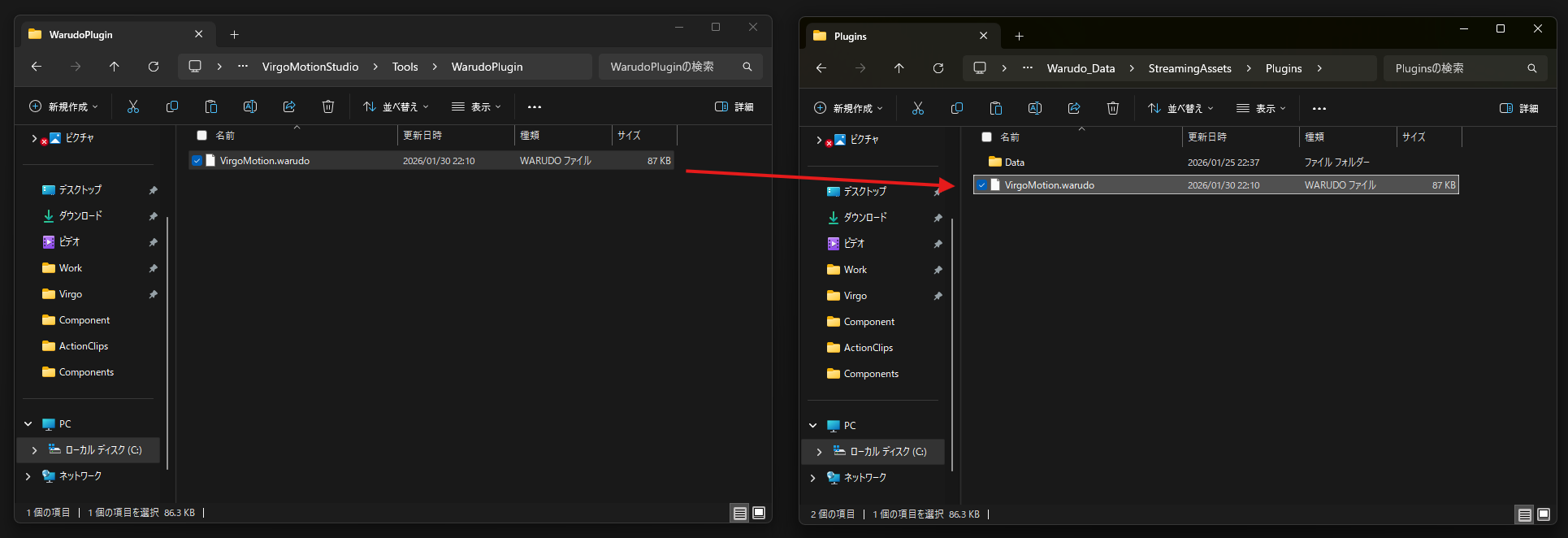
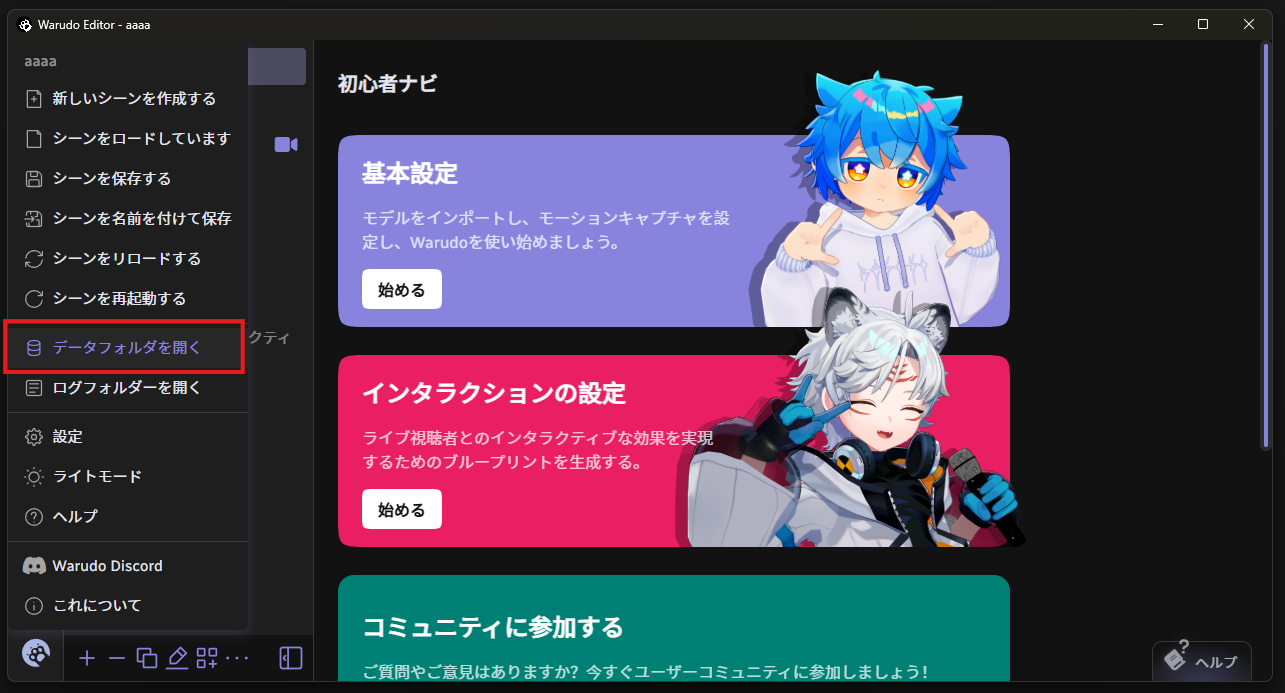
The Warudo data folder can be accessed from the Warudo Editor menu under Open Data Folder.
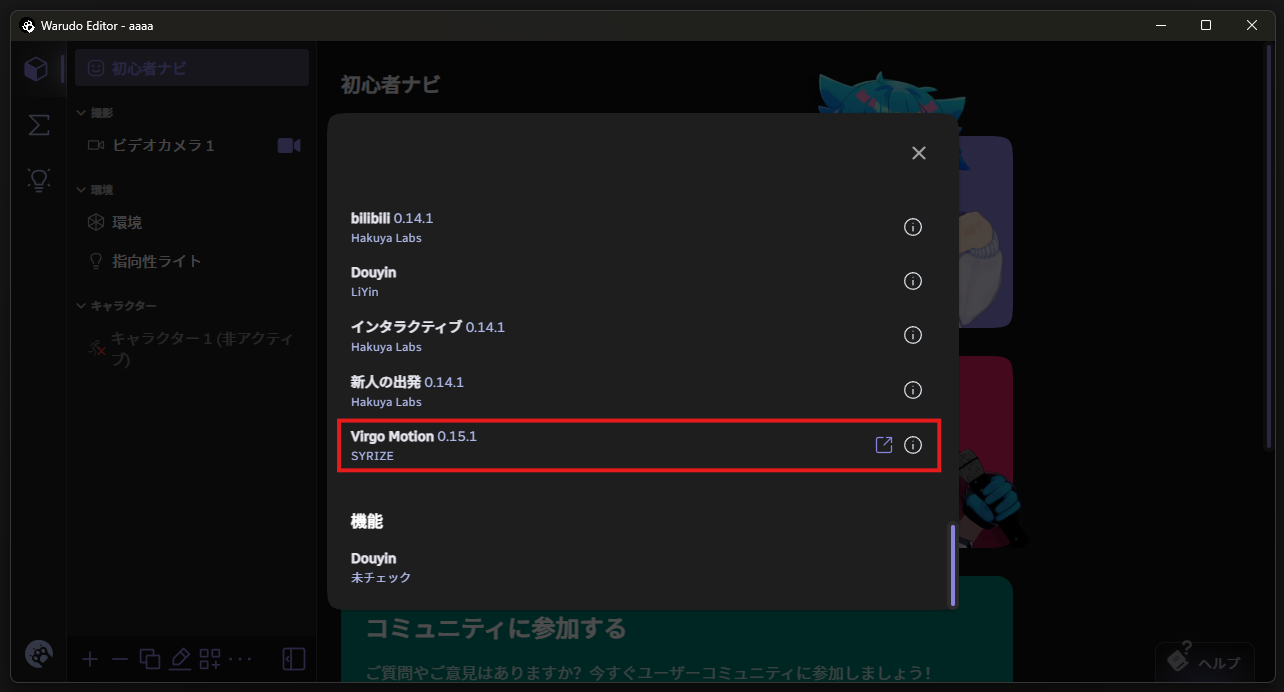
Select About from the Warudo Editor menu. If Virgo Motion is displayed, the plugin installation was successful.
Warudo Configuration
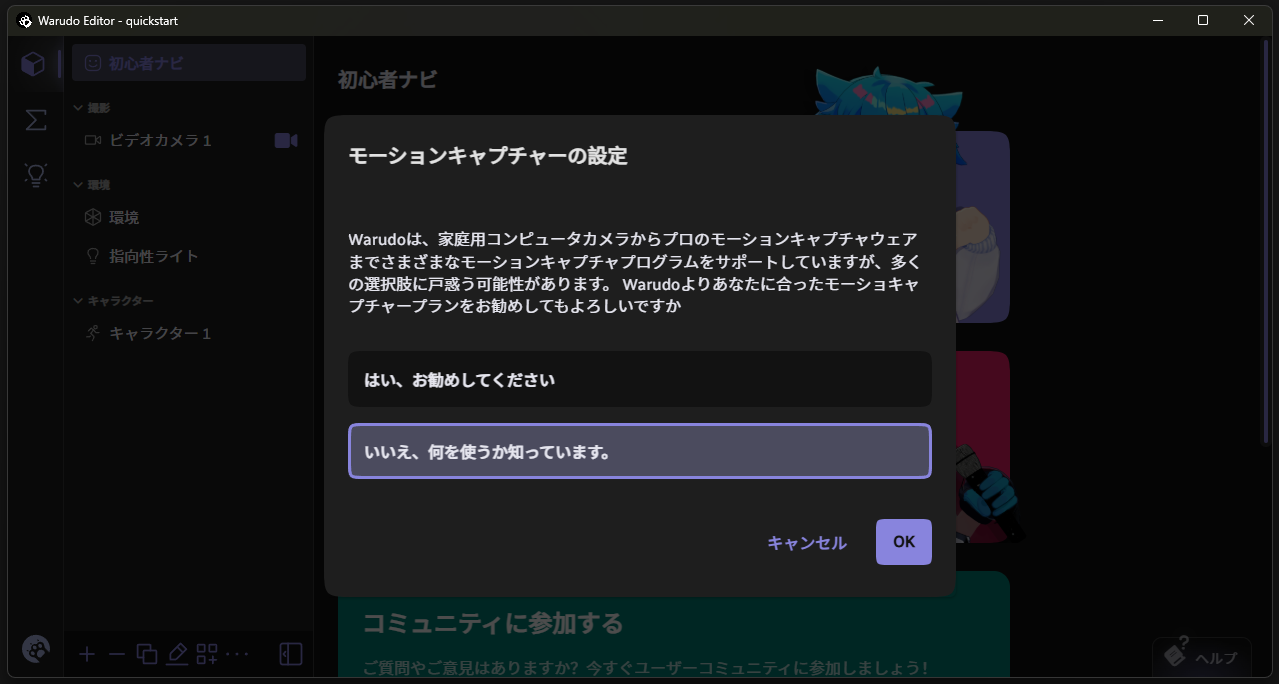
Launch Warudo and from the Onboarding Assistant
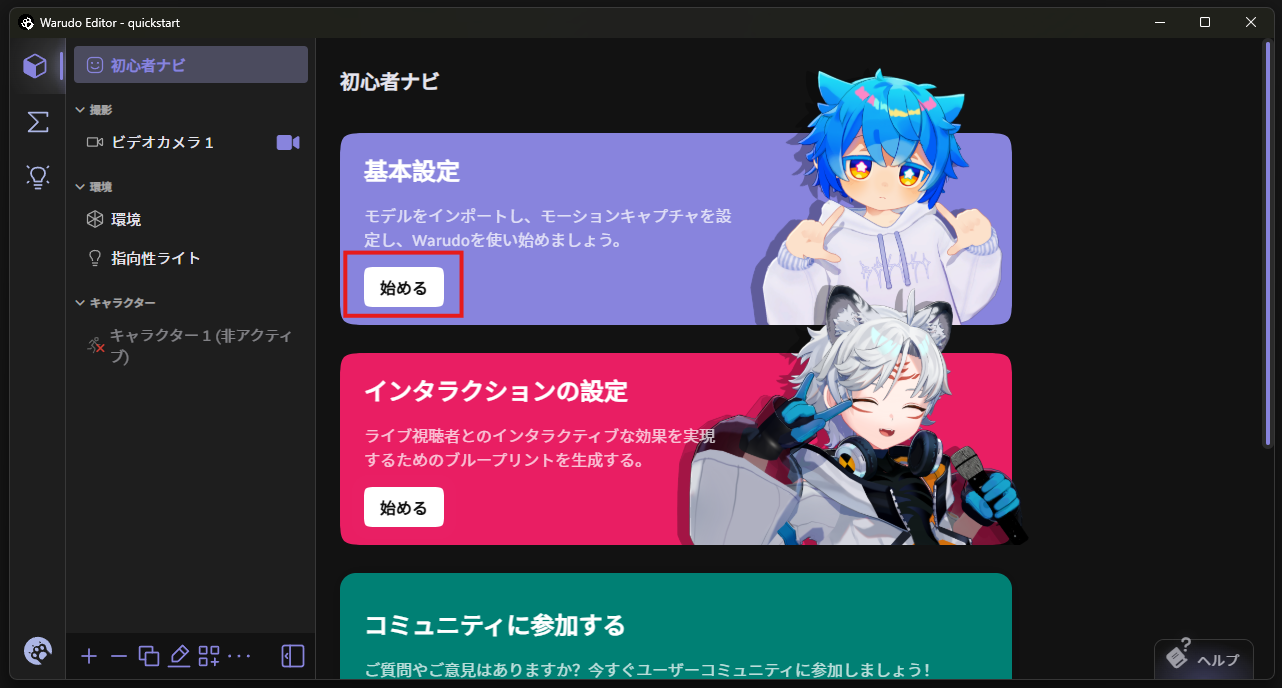
In the motion capture settings, select No.
Then in the tracking selection, select VirgoMotion.
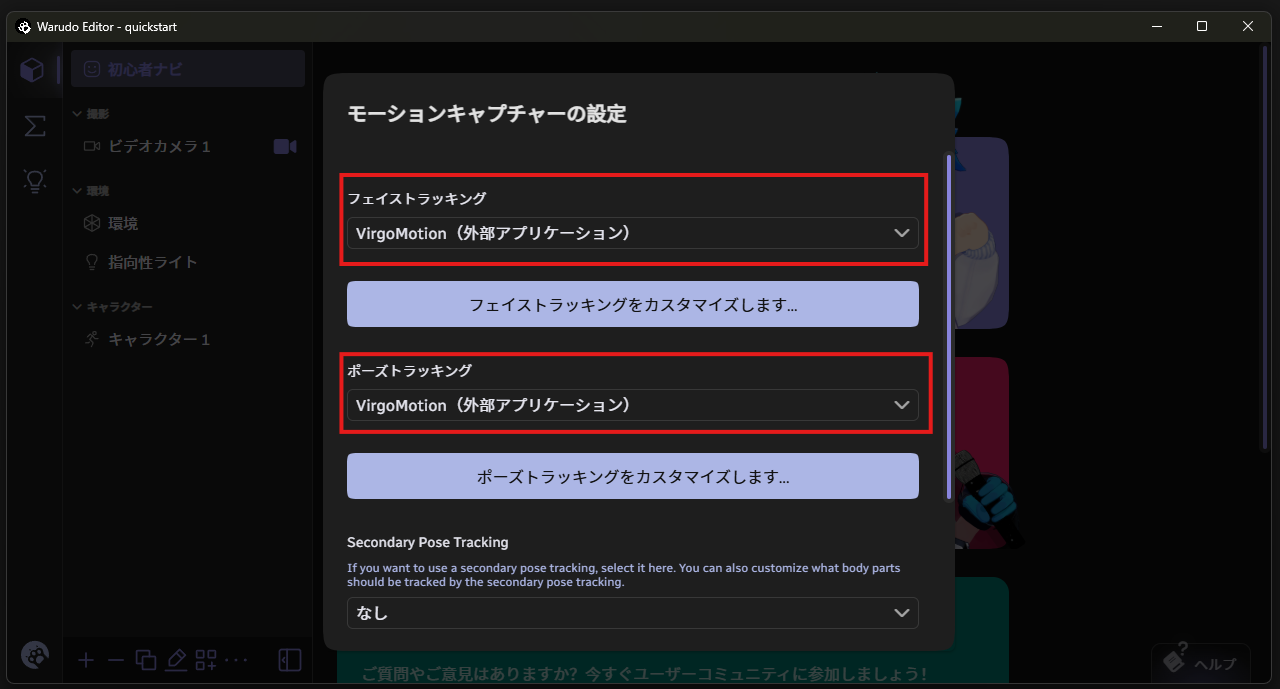
That's it.
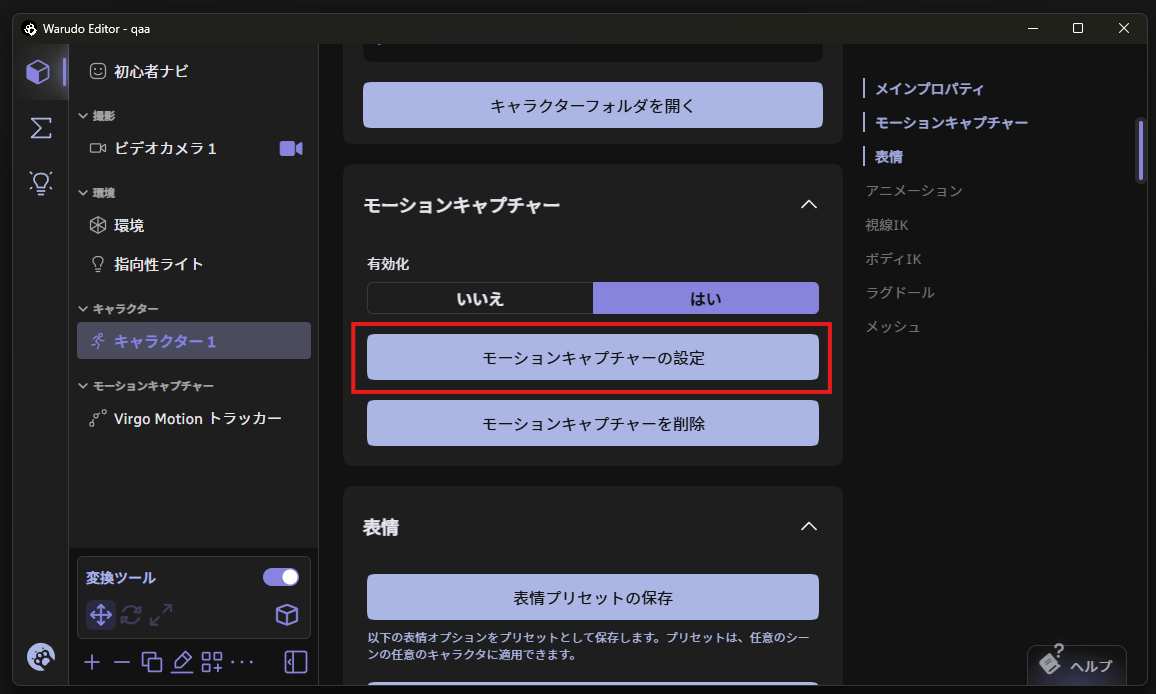
You can also set it up from the character asset's Motion Capture Settings.
Launching VirgoMotionFusion
Launch VirgoMotionCapture on iPhone and VirgoMotionFusion on PC. Fusion is located in the Tools folder.
If you use a PC webcam, capture is built into VirgoMotionFusion, so you only launch VirgoMotionFusion (Capturing with a PC Webcam).
VirgoMotionStudio/Tools/VirgoMotionFusion/VirgoMotionFusion.exe
VirgoMotionFusion takes capture data received from VirgoMotionCapture and bone information received from Warudo, constructs the pose, and sends it to Warudo.
Capture
  ↓
Fusion
  ↕
Warudo
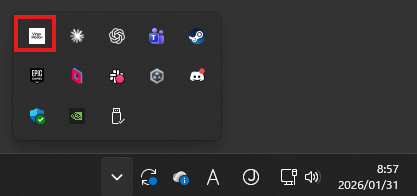
When launched, a console window and a system tray icon will appear.
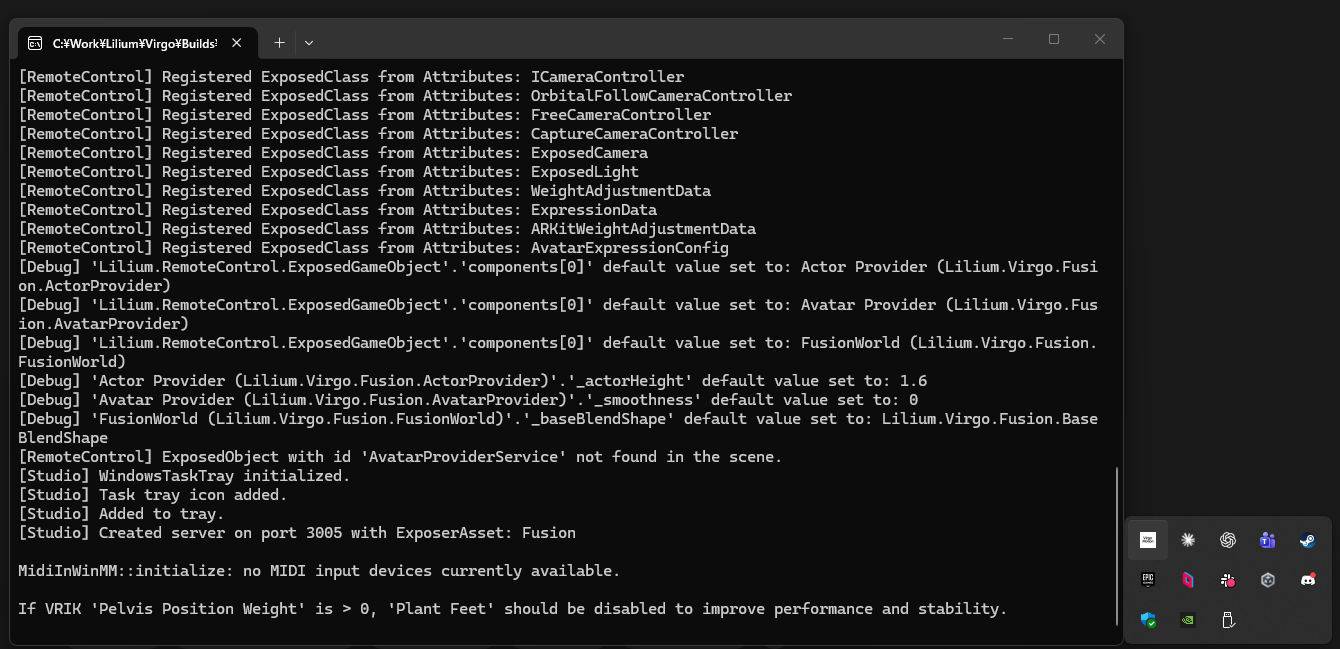
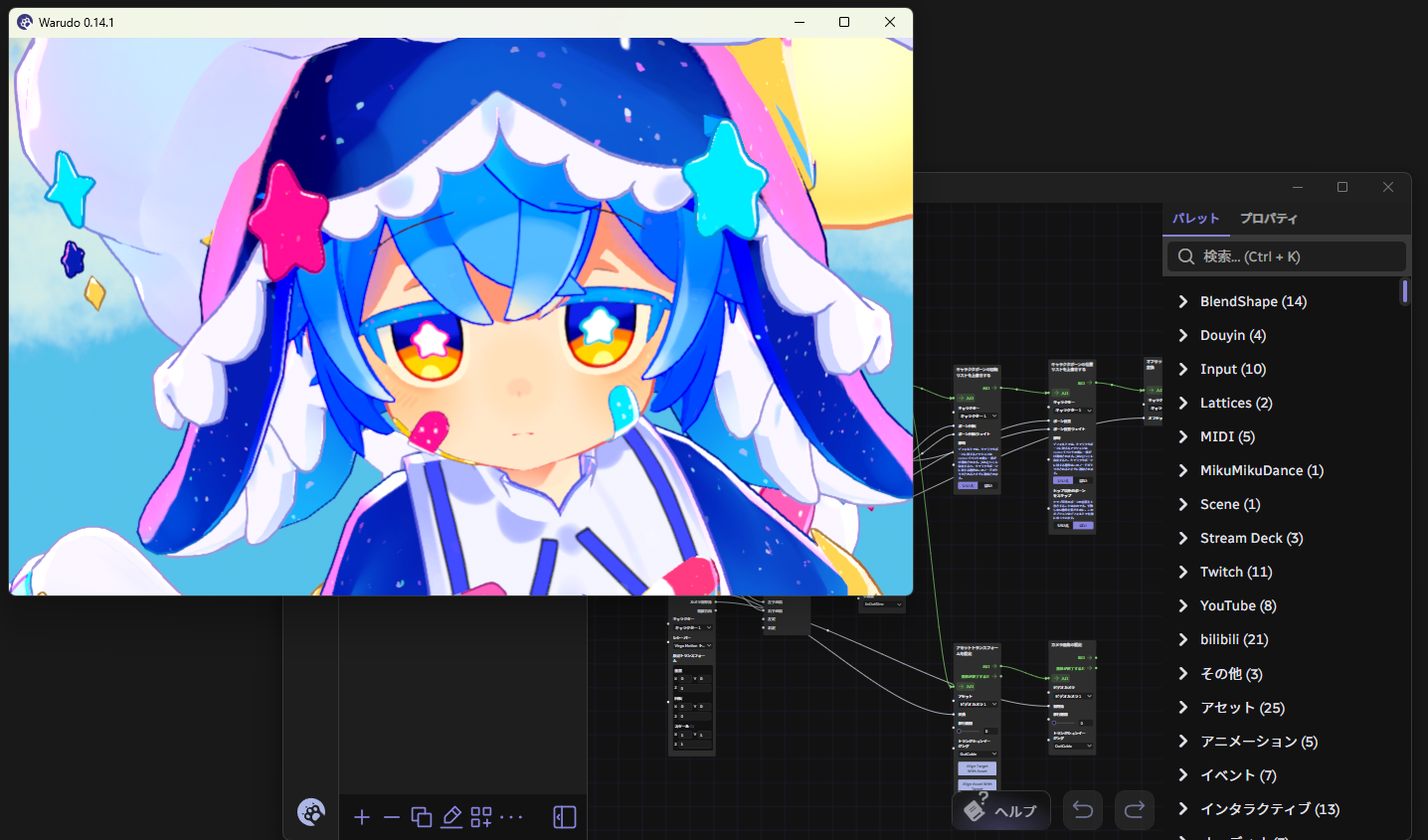
If everything is working correctly, the character will move.
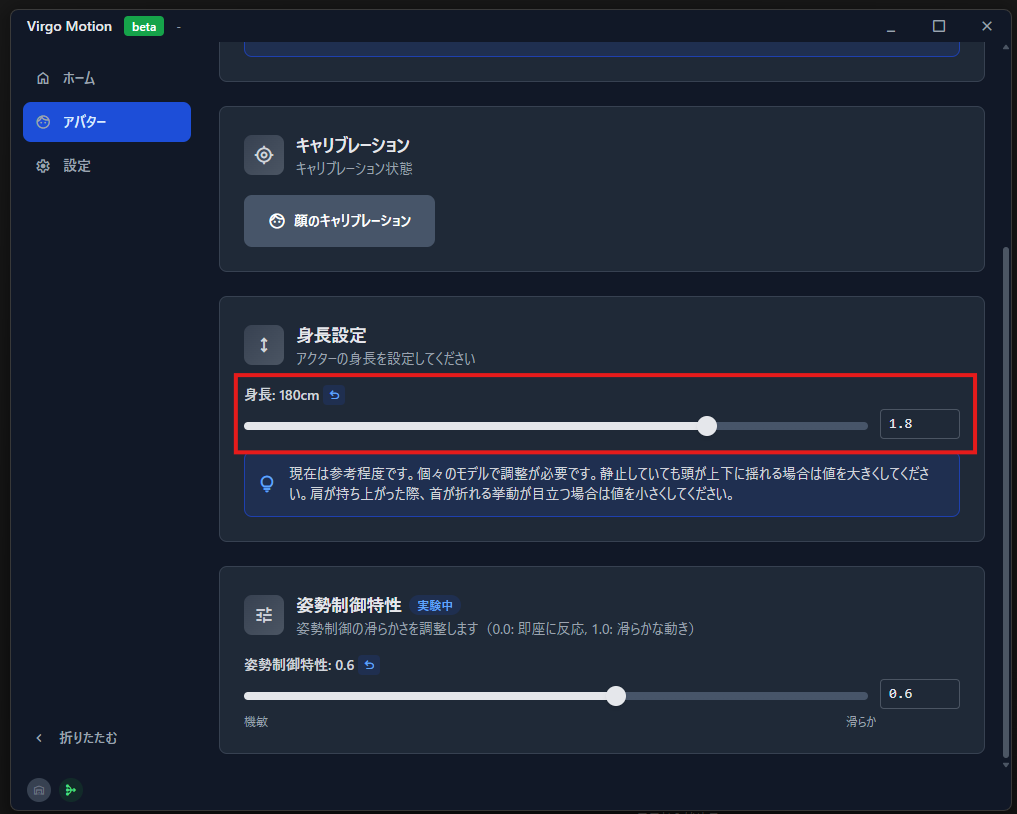
Click the VirgoMotionFusion icon in the system tray to launch the Remote app, and adjust the height.
Details
Virgo Motion Tracker Asset
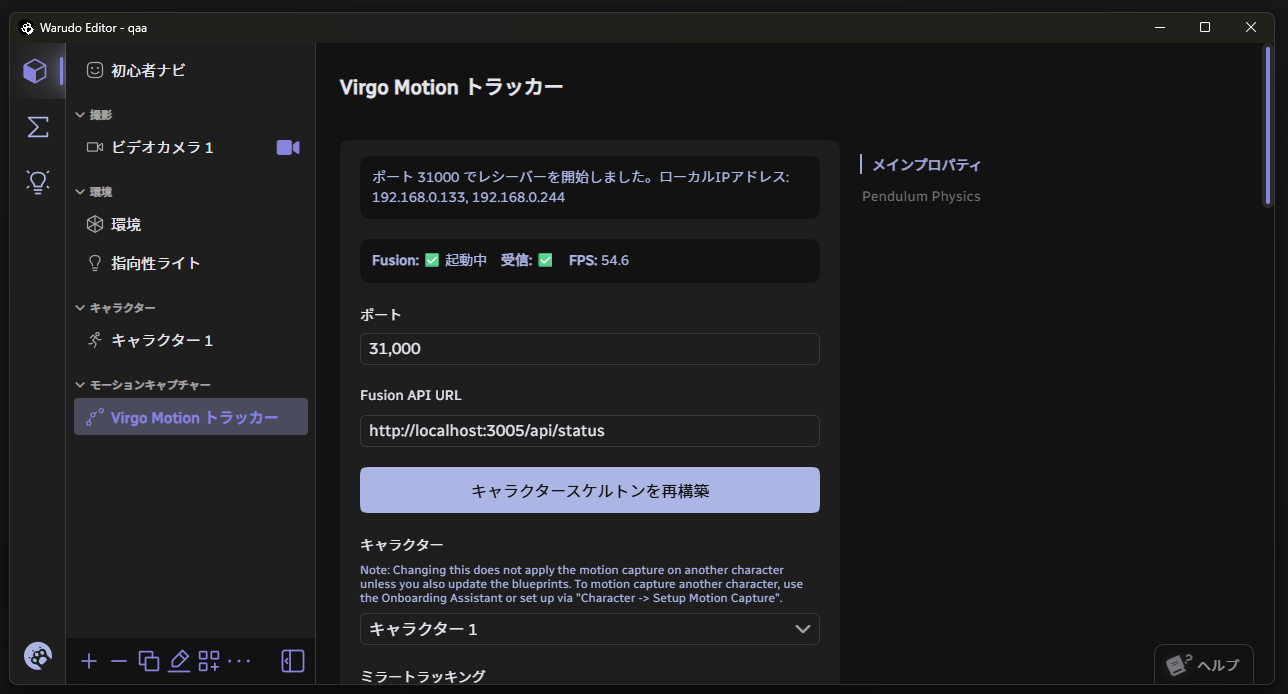
You can check the connection status with Fusion and whether motion data is being received.
Rebuild Character Skeleton Button
Resends the character's bone information to Fusion. You generally don't need to press this, but if the character's posture becomes distorted, pressing this may resolve the issue.
Character
Sets the character being controlled by motion capture. Since VirgoMotion constructs poses on the Fusion side tailored to the character's skeleton, it needs to know which character is being controlled. This can also be set from blueprint nodes.
Get Virgo Motion Receiver Data Node
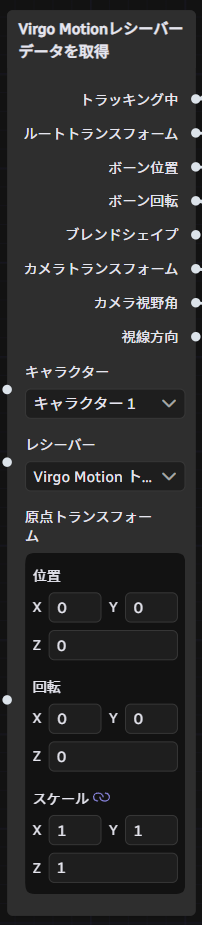
Character
Specifies the character to control. This overrides the character set in the VirgoMotion Tracker asset associated with the receiver.
Receiver
The associated VirgoMotion Tracker asset.
Origin Transform
VirgoMotion constructs the character's position and pose relative to the camera's position and rotation. Therefore, camera origin information is required. By setting the actual iPhone camera height in Position Y in meters, the character can be projected to a natural position. Setting Rotation Y rotates the camera, and the character as seen from the camera rotates accordingly.
The specification of using the camera position as the origin is essential for creating accurate poses as seen from the camera. The camera's pose and FOV are also fixed to match the actual iPhone camera's FOV. If you don't require that level of accuracy, want to freely set the character's position, or want to set the camera FOV, you can address this by modifying the blueprints.