Configure License
The VirgoMotion license is configured in the Remote App (VirgoMotionRemote). Once a license is set, the watermark (background text) shown on the streaming screen disappears, and all features become fully available. You can also stream motion to LiveStudio SDK + VirgoMotion and the Warudo Plugin.
| Item | With License | Without License |
|---|---|---|
| VirgoMotion Studio App | ✅ | ✅ With watermark |
| LiveStudio SDK + VirgoMotion | ✅ | ⚠️ Cannot connect to VirgoMotion |
| VirgoMotion Warudo Plugin | ✅ | ❌ |
License keys are distributed via X, Discord, or Booth.
How to Enter the License
- Launch the Remote App.
- Open the License section on the Settings page in the sidebar.
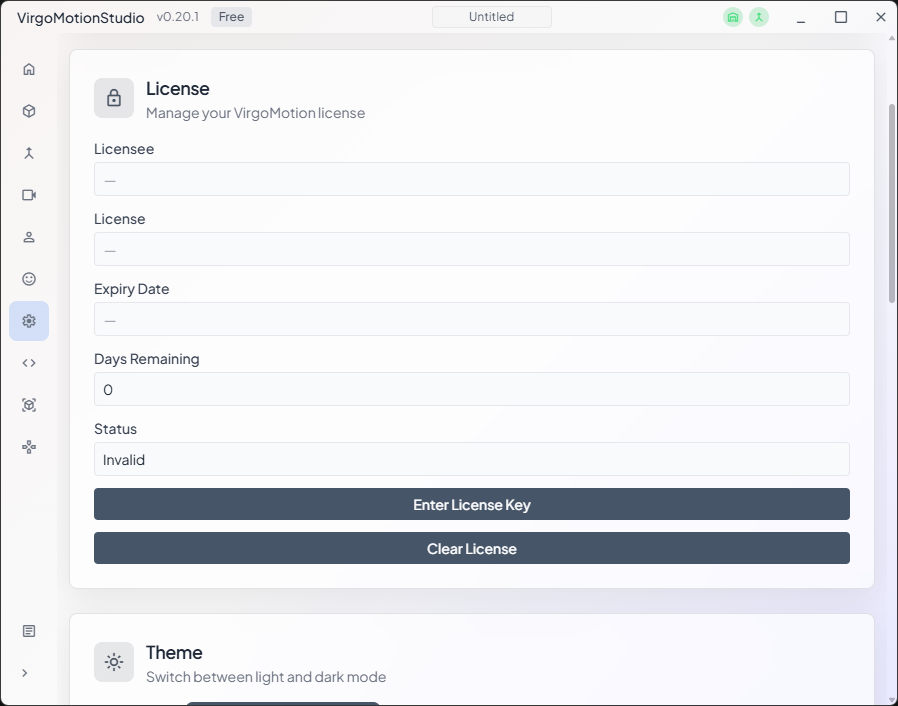
- Press the "Enter License Key" button.
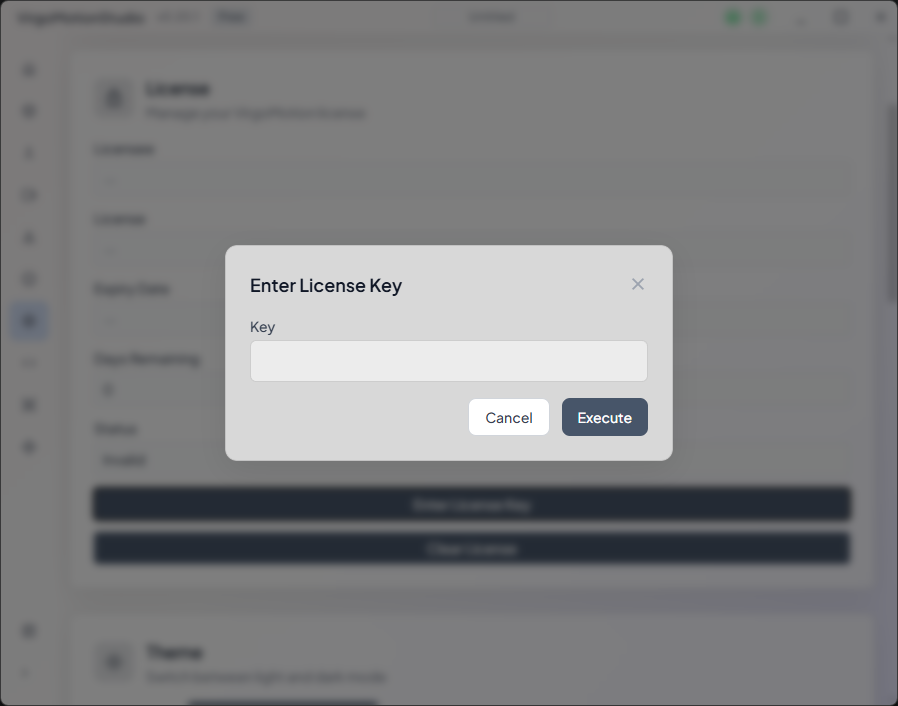
- Paste the distributed license key and press the Execute button.
Verifying the Configuration
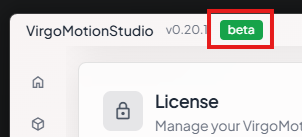
If the license badge appears in the Remote App, the license is active.
When You Can't Enter the License

When you launch VirgoMotionStudio.exe, the two indicators in the top-right of the Remote App light up green, as shown in the attached image. These indicate the communication connection status between the apps. If they are not lit, you cannot enter the license.
Also, in the case of the Unity Editor, communication does not occur unless you are in Play mode. Once you enter Play mode, the indicators light up and the UI for entering the license appears.
If the indicators do not light up, OS security may be blocking the connection. Please also refer to the following information. You may need to relax your OS security settings.