Actions
An Action is a mechanism that assigns a Studio-side operation to a key, gamepad, or MIDI device button so you can run it with a single press. On the Actions page of the Remote app, you register, bind, and run actions.
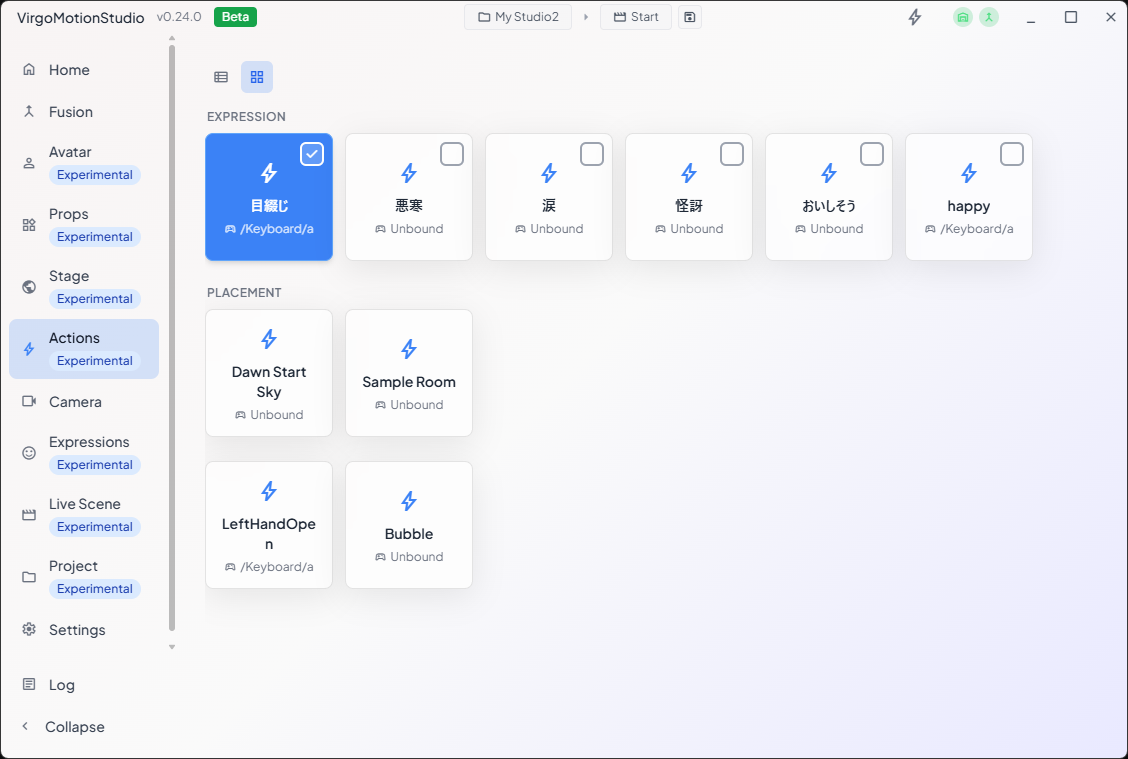
Action Sets and Actions
Actions are managed in units called Action Sets.
| Term | Role |
|---|---|
| Action Set | A unit that bundles one input binding (a key / button) together with several Actions tied to it. Pressing a single button runs the actions in the set all at once. |
| Action | An individual operation — either "invoke a function" or "change a property." A single action set can contain multiple actions. |
Action Set (input = e.g. the A button on a gamepad)
├─ Action  Toggle a light on/off
├─ Action  Switch the camera
└─ Action  Change the expression
Switching the View
Use the toggle in the top right of the page to switch between list view and card view.
| View | Purpose |
|---|---|
| List view | For management — adding and removing action sets, toggling enabled/disabled, binding input, editing details, and so on. |
| Card view | Only enabled action sets are laid out as cards, which you tap to run. Use it as an operation panel during a live stream. |
Managing Action Sets (List View)
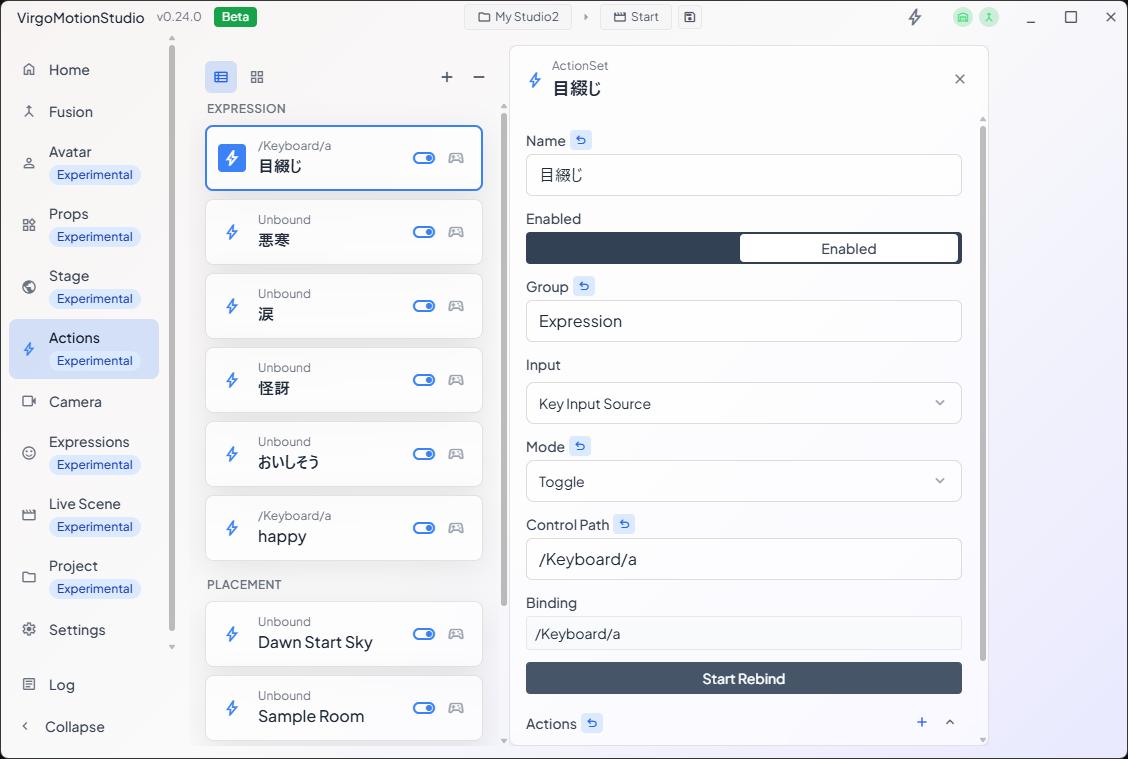
Adding and Removing
- Use Add Action Set (+) in the top right of the page to create an empty action set.
- Select a set in the list and use Delete Action Set (−) to delete it.
Enabling and Disabling
Each action set can be enabled / disabled. Only enabled sets appear in card view, so keep only the sets you use in production enabled.
Binding Input
Bind the input (a key / button) that triggers each action set. Press Assign input to enter the waiting state, then press a key on the Studio machine, or a button on a gamepad or MIDI device, and that button is registered.
For a gamepad or key to respond, Studio must be running (Play mode) and the Game view must be focused.
Adding and Editing Actions
Select an action set in the list to edit the actions it contains in the detail pane on the right. From + in the action list, choose the type of action to add (invoke a function / change a property) and configure its target and value.
Action Modes
Actions that change a property have a mode that determines how the button behaves.
| Mode | Behavior |
|---|---|
| Toggle | Each press switches between ON and OFF. |
| Hold | ON only while held, returning to OFF when released. |
| Value | Drives a numeric (float) property with a continuous value. |
Actions that invoke a function have no mode and run on every press (button-style).
Groups (Exclusive Switching)
You can assign a group to an action set. Toggle action sets that belong to the same group become mutually exclusive: turning one ON automatically turns the others in the same group OFF (like radio buttons). Use this, for example, when you want to select only one of several expressions or camera angles.
Turning a Control into an Action
Besides building actions from scratch on the Actions page, you can also create them directly from controls (buttons and toggles) throughout the app.
First, you need to turn on assign mode.

When you turn on assign mode, a Make Action (⚡) button appears next to the corresponding controls.
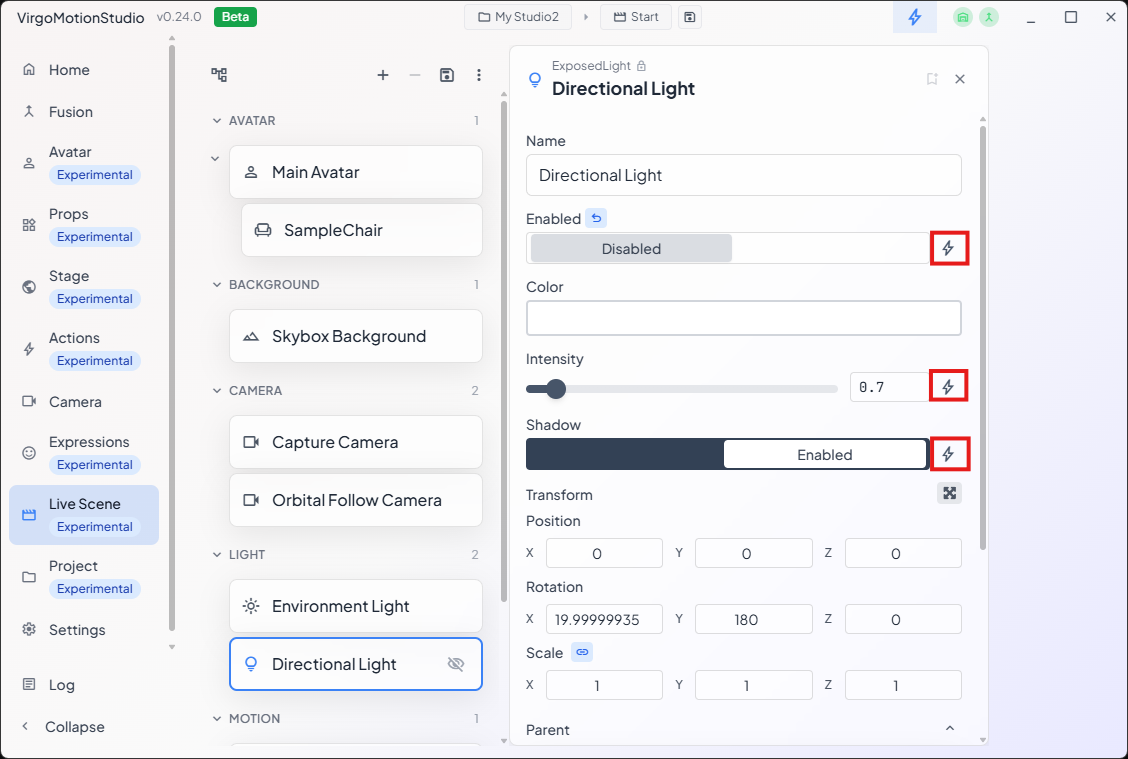
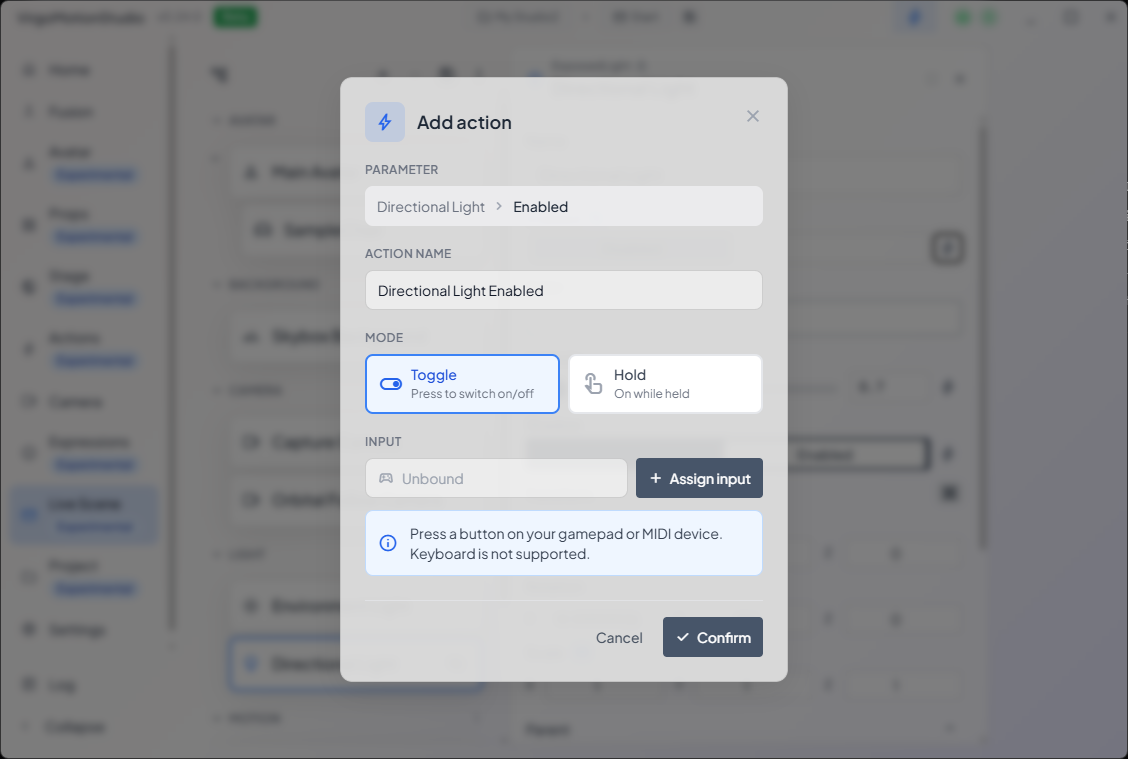
Pressing it opens a confirmation dialog where you:
- Review and edit the action name,
- (for ON/OFF controls) choose a mode (Toggle / Hold), and
- optionally assign an input (key) (you can also assign it later),
and pressing Confirm creates one action set that operates that control. Cancel creates nothing. Controls that have already been turned into actions show as "Added."
For step-by-step instructions on assigning an expression to a button, see Expression Keybinds. Assigning from an expression card works through the same mechanism as this "Make Action" flow.