Build a VTuber Streaming App
A quick-start guide for building a standalone 3D VTuber streaming app based on VirgoMotionStudioTemplate.
Requirements
- Windows PC
- Unity 2022.3 or later (verified on Unity 6.0.71f1)
- A VirgoMotion capture environment (the iPhone Capture app + the PC Fusion app, or a PC webcam + the Fusion app)
- A VirgoMotion license
Without a license configured, motion cannot be received. So, currently, a license is required in practice to build a streaming app. For how to obtain and configure a license, see Configure License. We plan to support other motion capture systems in the future.
It goes more smoothly if you have already set up VirgoMotionStudio, entered a license, and verified that it works.
Quick Start
1. Download the Template
Get the VirgoMotionStudioTemplate set from Booth.
2. Open the Project in Unity
Open the downloaded folder from Unity Hub. The first launch takes time to resolve dependencies. On startup, the contents of the Readme asset will be shown in the Inspector.
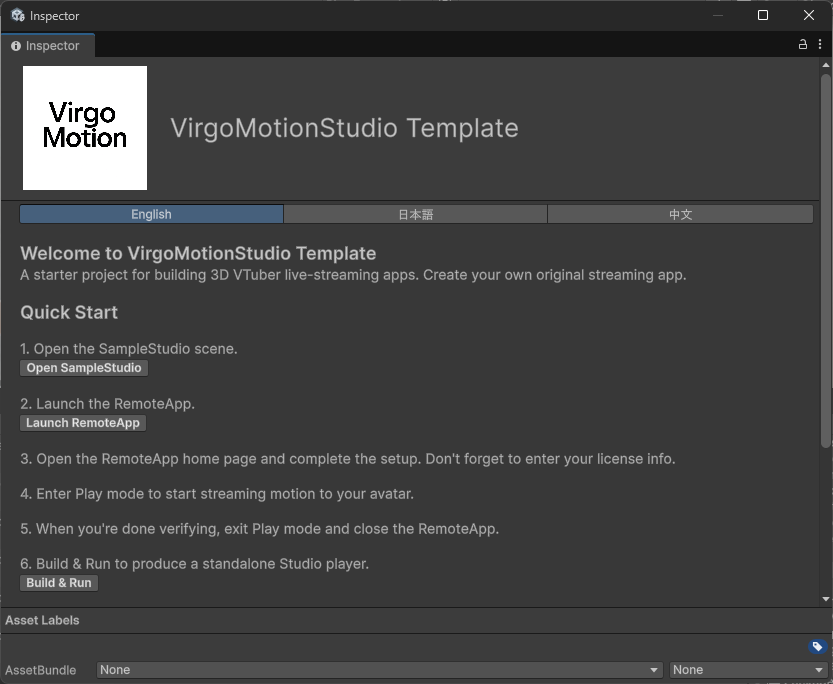
3. Open the SampleStudio Scene
Open Assets/Scenes/SampleStudio.unity. You can also open it from the "Open SampleStudio" button on the Readme shown at Unity startup.
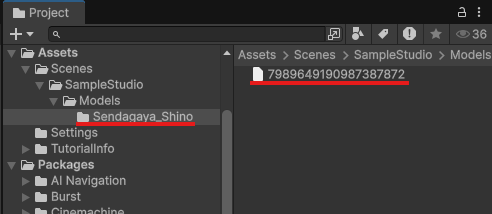
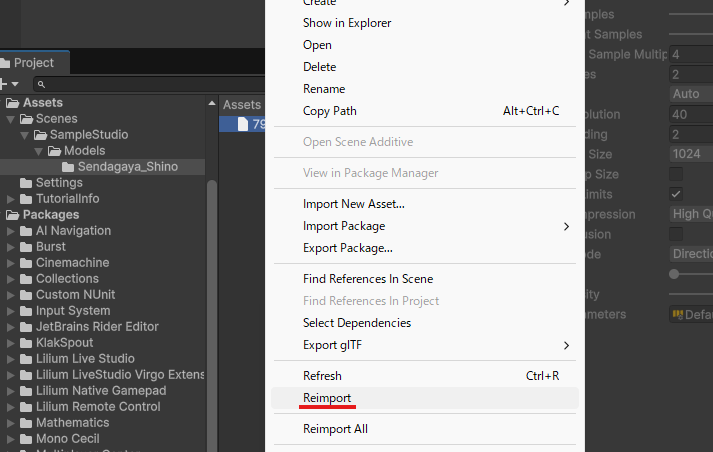
Right after the first launch, the VRM file for the sample avatar will fail to import.
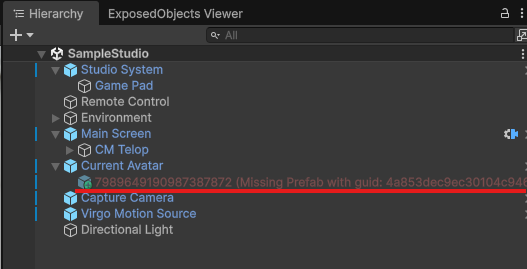
This can be resolved by reimporting the affected VRM (right-click and choose Reimport).
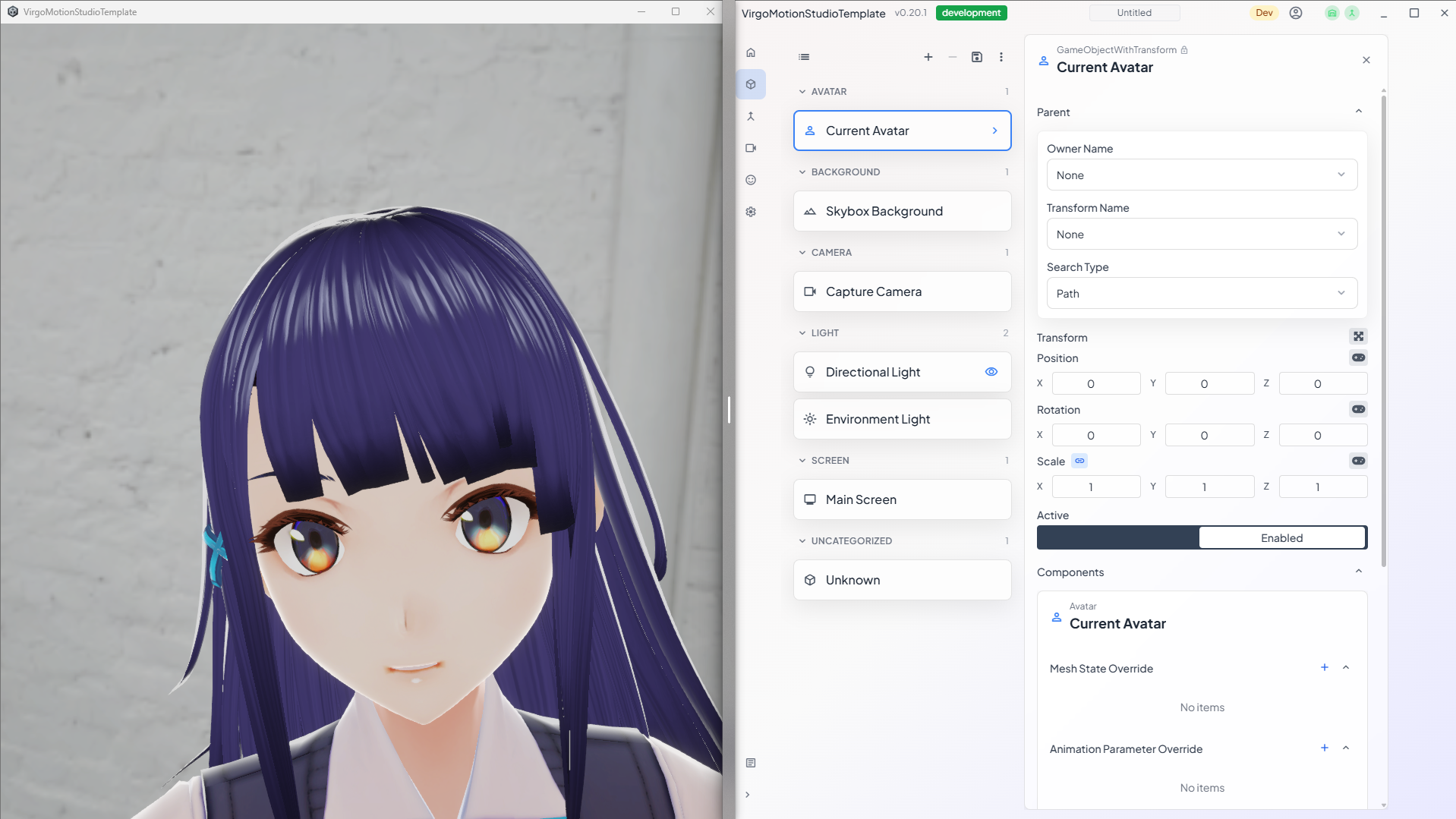
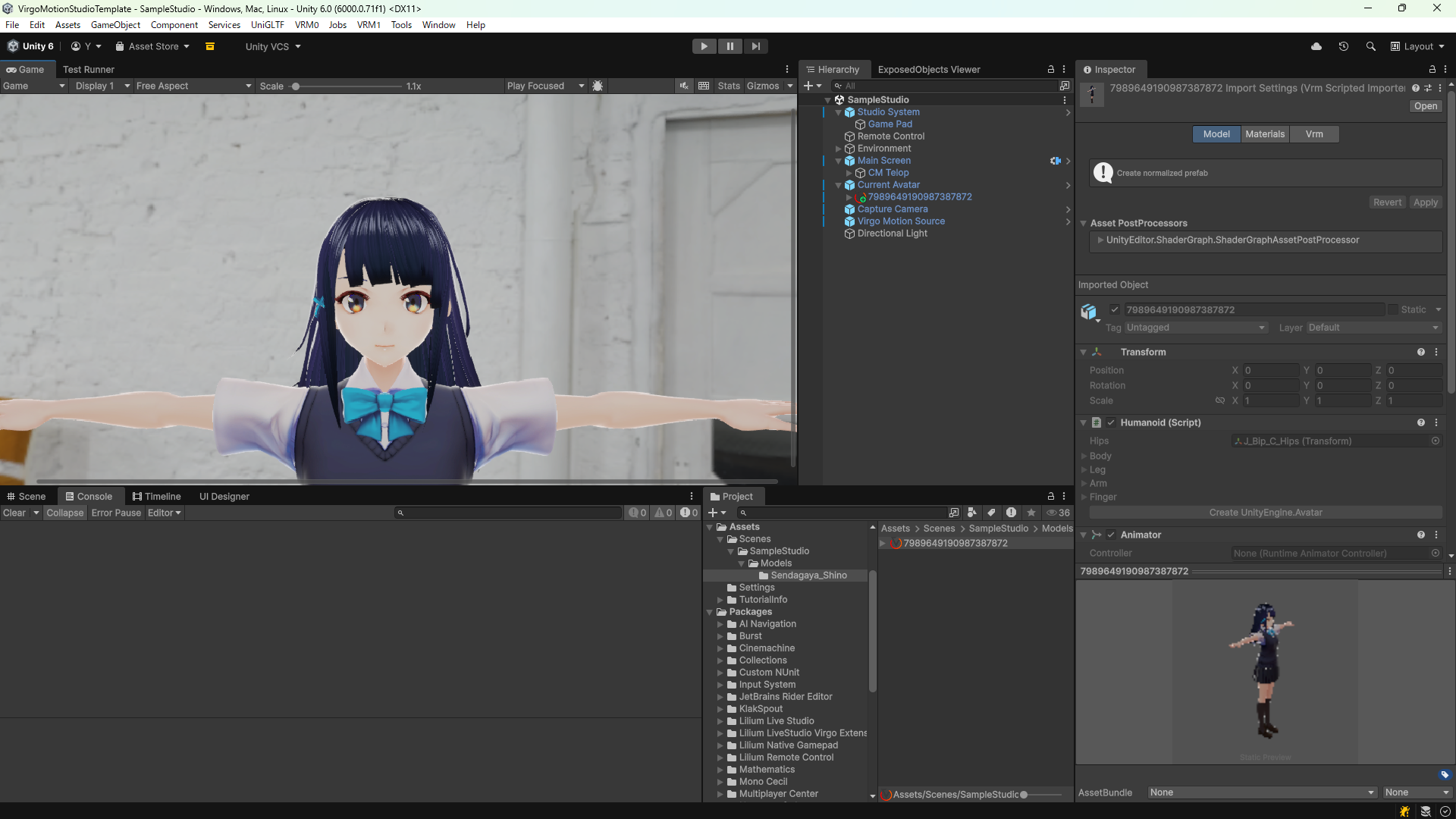
Once the reimport completes, the character appears in the Game window.
4. Launch the Remote App
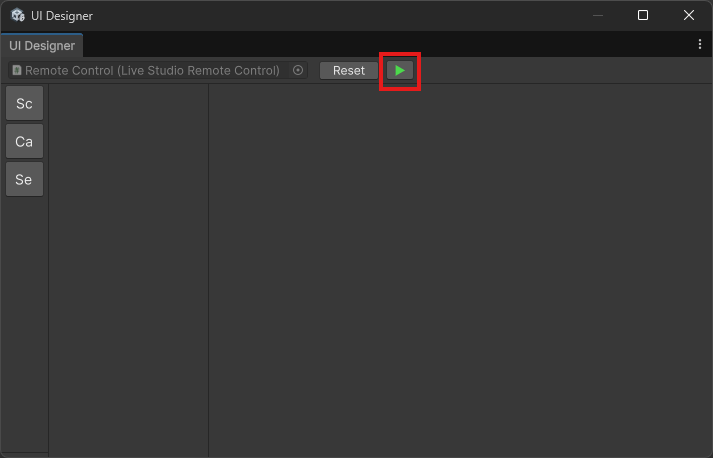
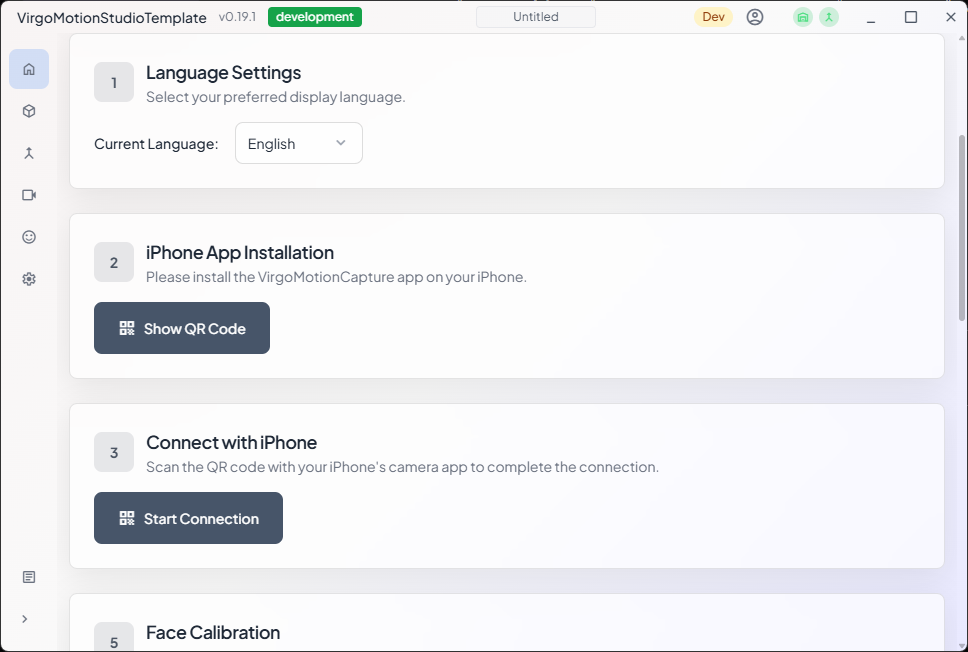
Press the "Launch Remote App" button on the Readme to start the Remote app. You can also launch it from the ➡ button in the Window > Lilium RemoteControl > UI Designer window.
5. Verify in Play Mode
Enter Play mode in the Unity editor and verify that motion is reflected on the avatar.
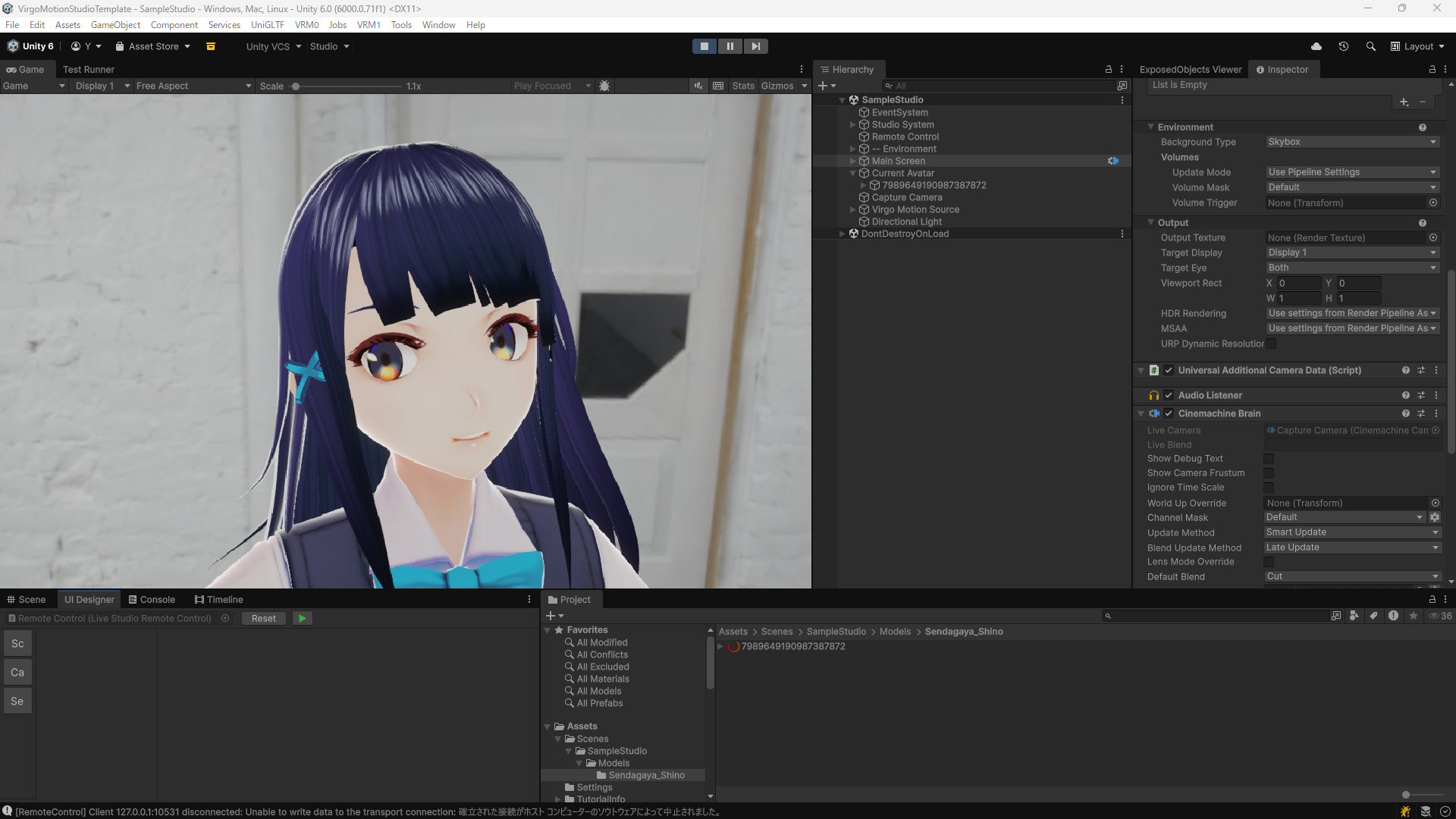
If VirgoMotion has not yet been set up, motion cannot be received. Check the first page of the Remote app and complete the initial setup. Don't forget to enter the license information if you haven't already.
When configuring the license in the Unity Editor, be sure to perform the setup while in Play mode. The buttons related to license setup disappear only while in Play mode.
Once verified, exit Play mode and close the Remote app.
7. Build and Run
Use File > Build And Run, or the "Build and Run" button in the Readme window, to generate the Studio app.
Run the VirgoMotionStudioTemplate.exe in the folder you selected.