Use VRChat Avatars
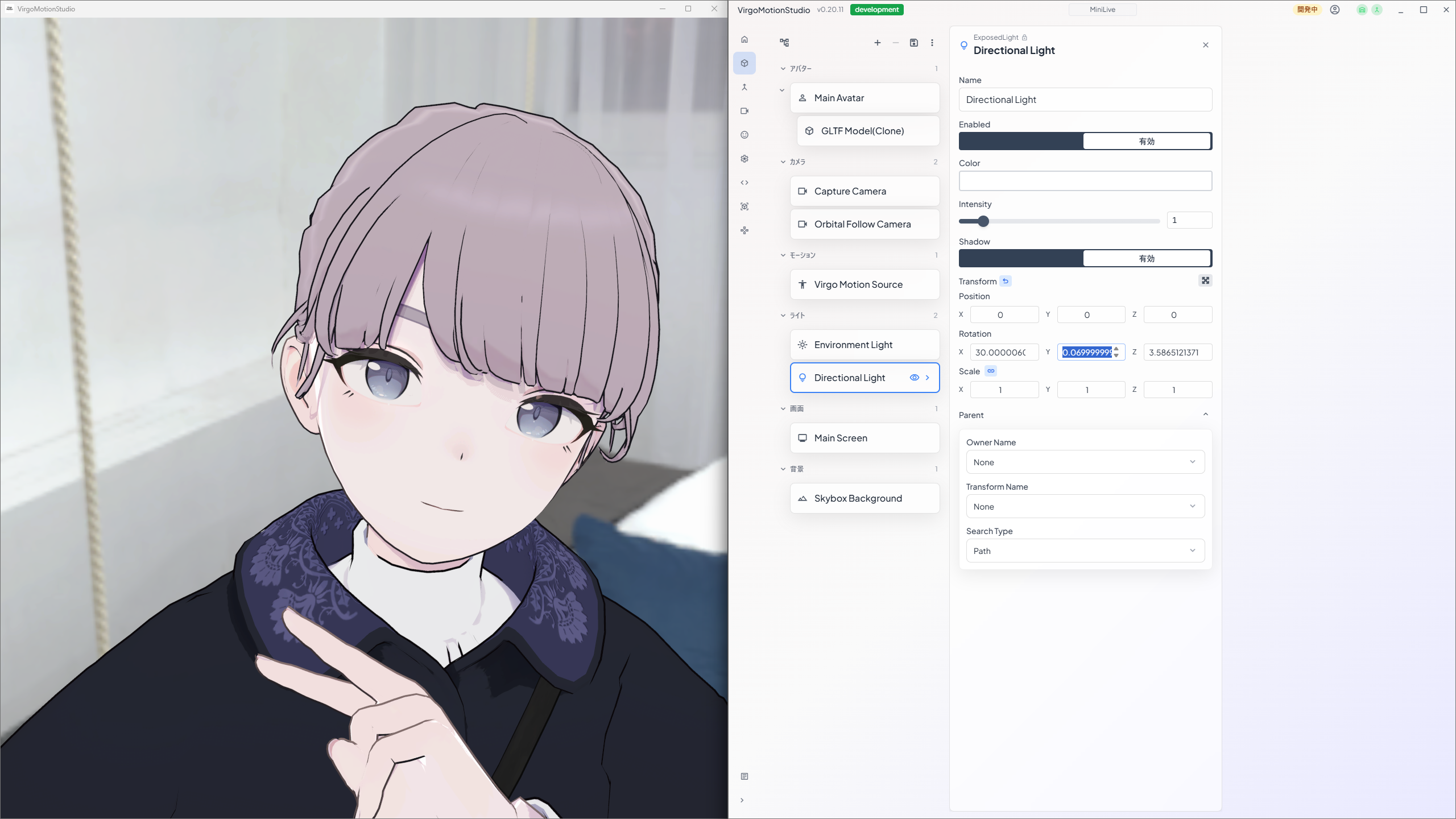
There are two main ways to use a VRChat avatar.
- To use it in the Studio app: export it as
*.avatar.lsb, then load it in the app. - To embed it in your own streaming app: in addition to the above, export it as
*.unitypackageand import it into a Unity project.
Requirements
- Windows PC
- Unity 2022.3 or later (verified on Unity 2022.3.22f1)
- A complete VRChat avatar project
Quick Start
Set Up the Environment
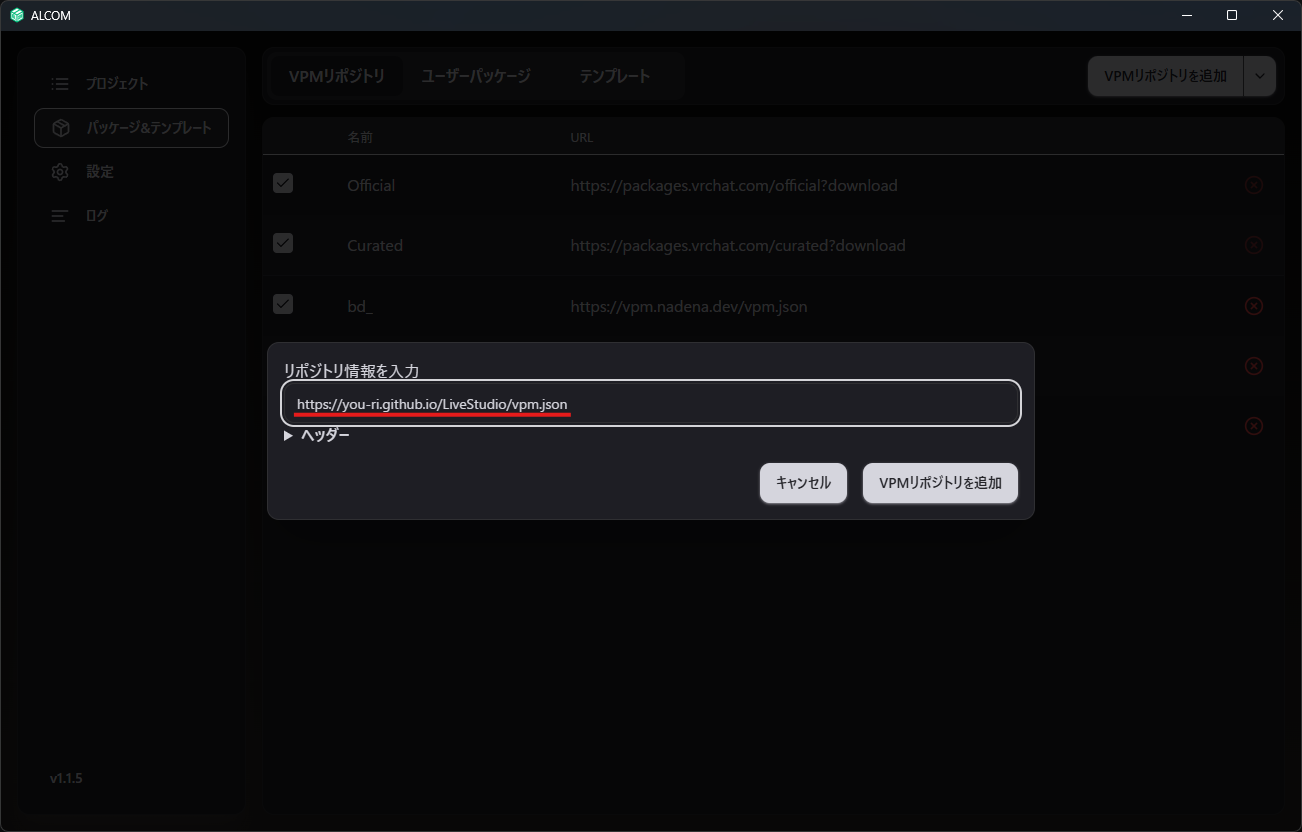
1. Add the Lilium VPM Registry
Add the repository below to your VPM client.
https://you-ri.github.io/LiveStudio/vpm.json
In VCC, add the URL above from Settings > Packages > Add Repository. In ALCOM, use Settings > User Packages > Add Repository.
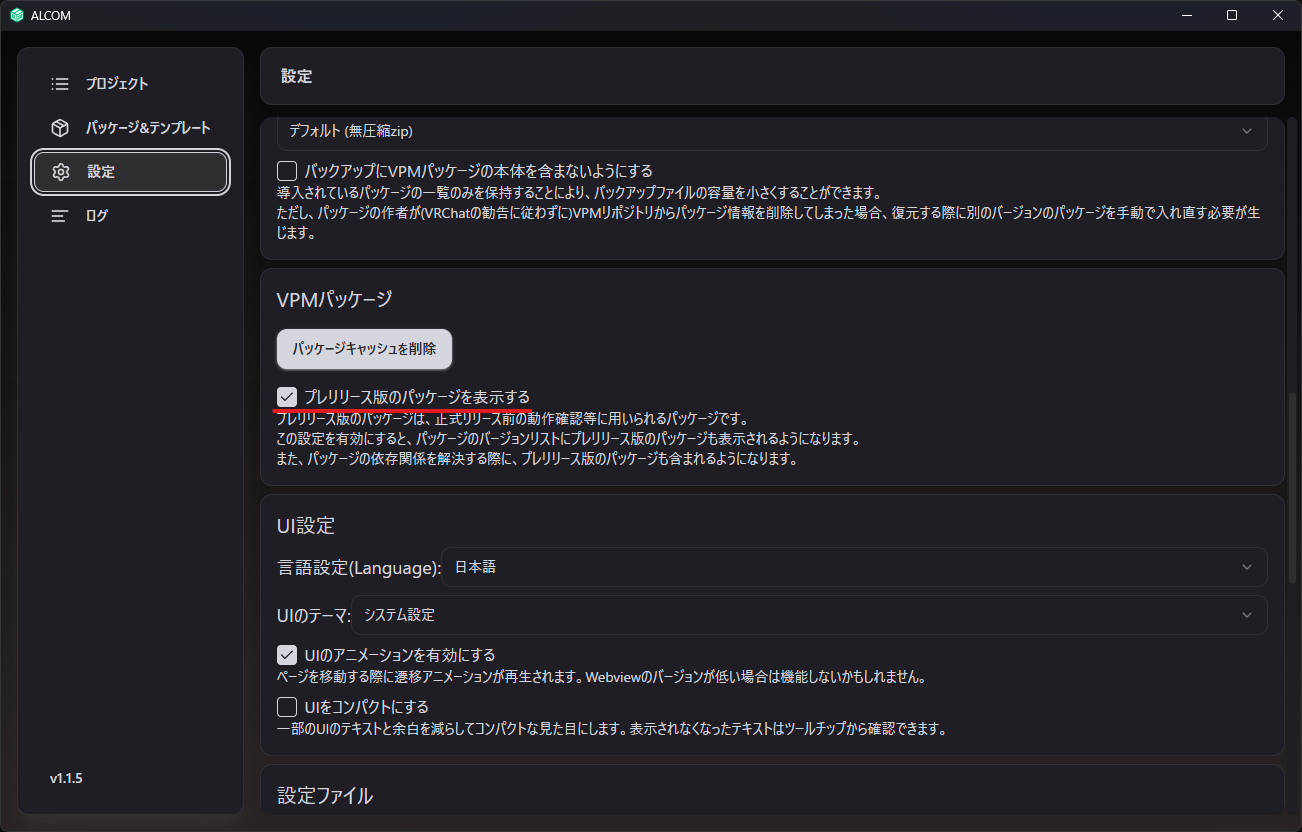
jp.lilium.vrchatavatartransfer is currently shipped as a prerelease version. In VCC, the package will not appear in the list unless you turn ON Settings > Packages > Show Pre-release Packages.
Prepare the Project
1. Install Lilium VRChat Avatar Transfer
After creating a project, or into an existing project, use your VPM (VRChat Package Manager) client to install Lilium VRChat Avatar Transfer and Lilium Live Studio Virgo Extension.
The Lilium Live Studio Virgo Extension package is not required if you only want to convert, but here we install it to connect with VirgoMotion and verify the behavior.
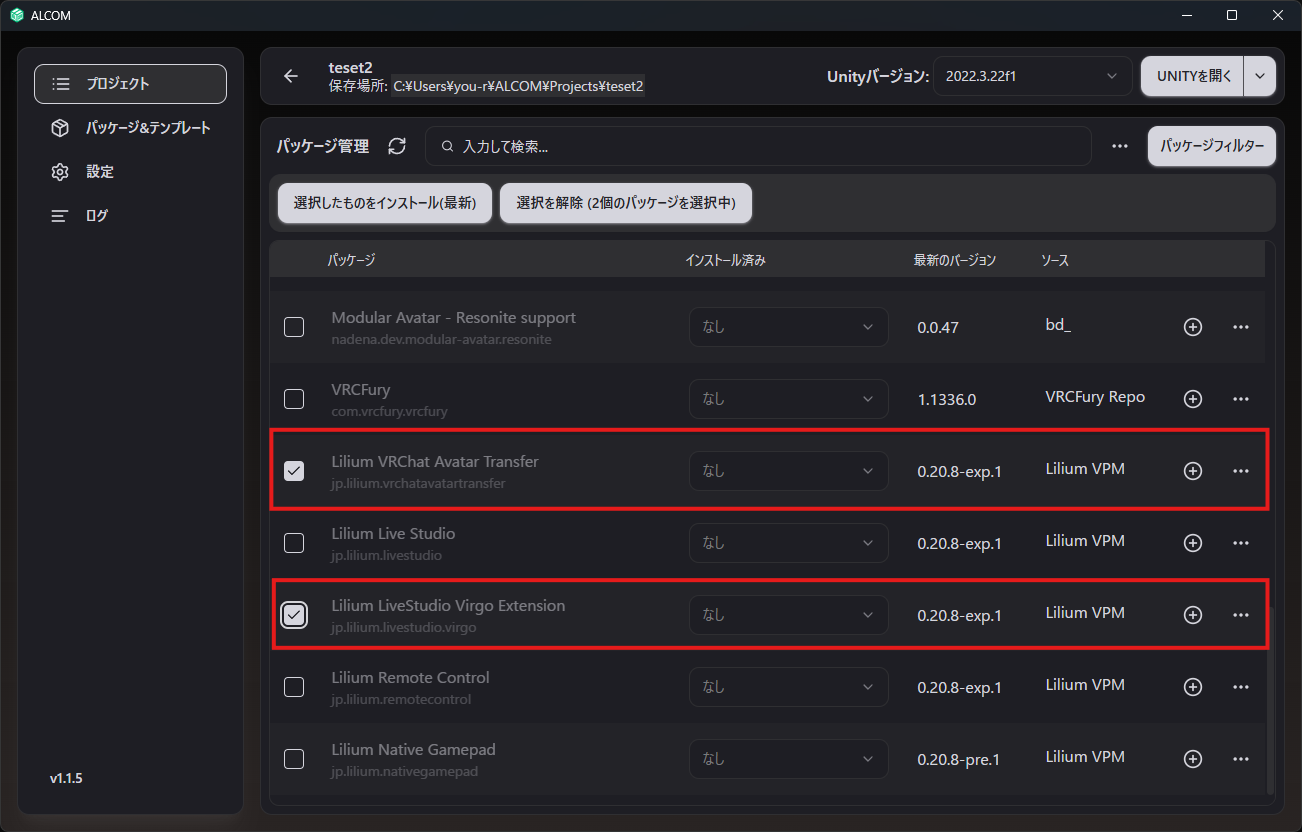
The screenshot shows the screen using ALCOM, an unofficial VRChat VPM client.
Convert the Avatar with VRChatAvatarTransfer
Conversion Flow
Without Modular Avatar / NDMF
With a Manual Bake via Modular Avatar / NDMF
1. Open the Project in Unity
The first launch takes time to resolve dependencies (including the VRChat SDK).
Partway through, a dialog will appear asking to install the VRM package, so press OK to install it.
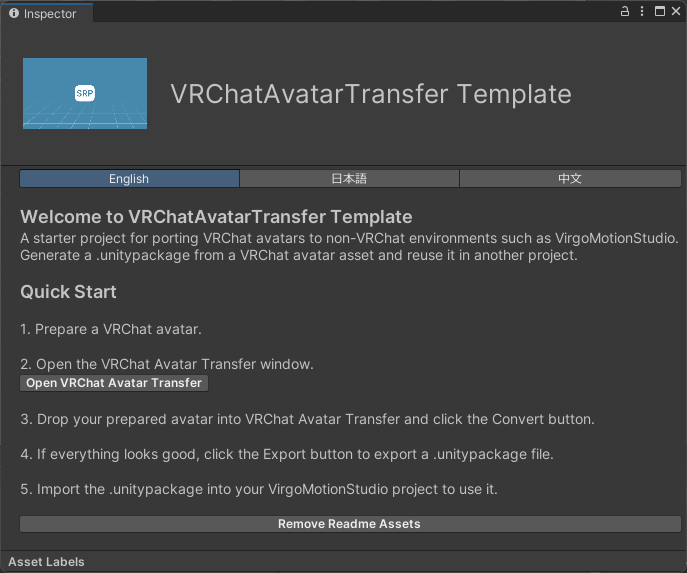
Once the required packages are installed and Unity starts up, the contents of the Readme asset will be shown in the Inspector.
2. Prepare the VRChat Avatar
Import the VRChat avatar you want to convert into the project.
2-1. Turn a Modular Avatar Bake Result into a Prefab (Optional)
When you run Manual Bake with Modular Avatar (NDMF), a baked GameObject such as Avatar(Clone) is produced in the scene. Meshes, materials, AnimationClips, and similar assets generated by this bake exist only in memory. If you turn that hierarchy into a prefab or move it to another project as is, these references will be lost and your materials / meshes will go missing.
To avoid this, select the baked avatar in the Hierarchy and run Tools > VRChat Avatar Transfer > Make Baked Prefab. The in-memory assets are persisted into a single container asset, and then the prefab is saved.
The output goes to Assets/VRCAT_GeneratedAssets/Baked/<avatar name>.prefab (the asset container is <avatar name>.Assets.asset in the same folder). This is separate from the Convert output folder.
This step is unnecessary for avatars that do not use Modular Avatar / NDMF, or whose references are already all real project assets.
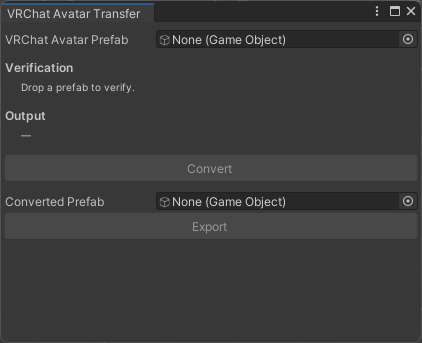
3. Open the VRChat Avatar Transfer Window
From the "Open VRChat Avatar Transfer" button on the Readme shown at Unity startup, or from Tools > VRChat Avatar Transfer > Transfer, open the window.
4. Convert the Avatar
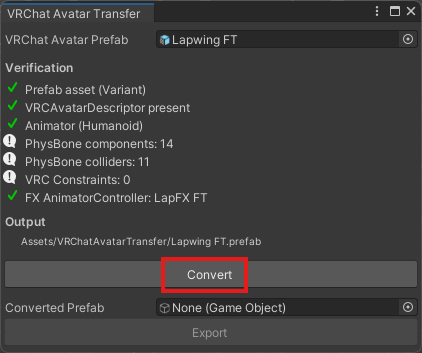
Drop the prepared avatar onto the VRChat Avatar Transfer window and press the Convert button.
Verify the Behavior
1. Create a New Scene
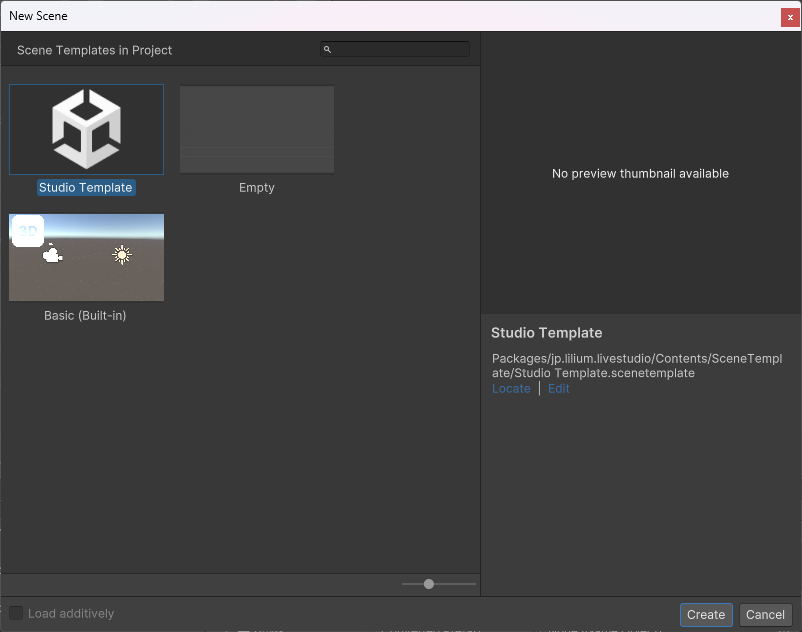
From File > New Scene, select Studio Template to create a new scene.
2. Place It in the Scene
Place the configured prefab under Main Avatar.
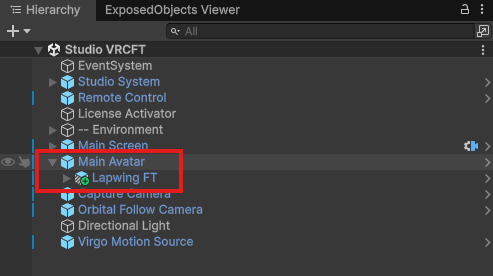
3. Play and Verify the Behavior
Press the Play button and verify that the avatar works correctly.
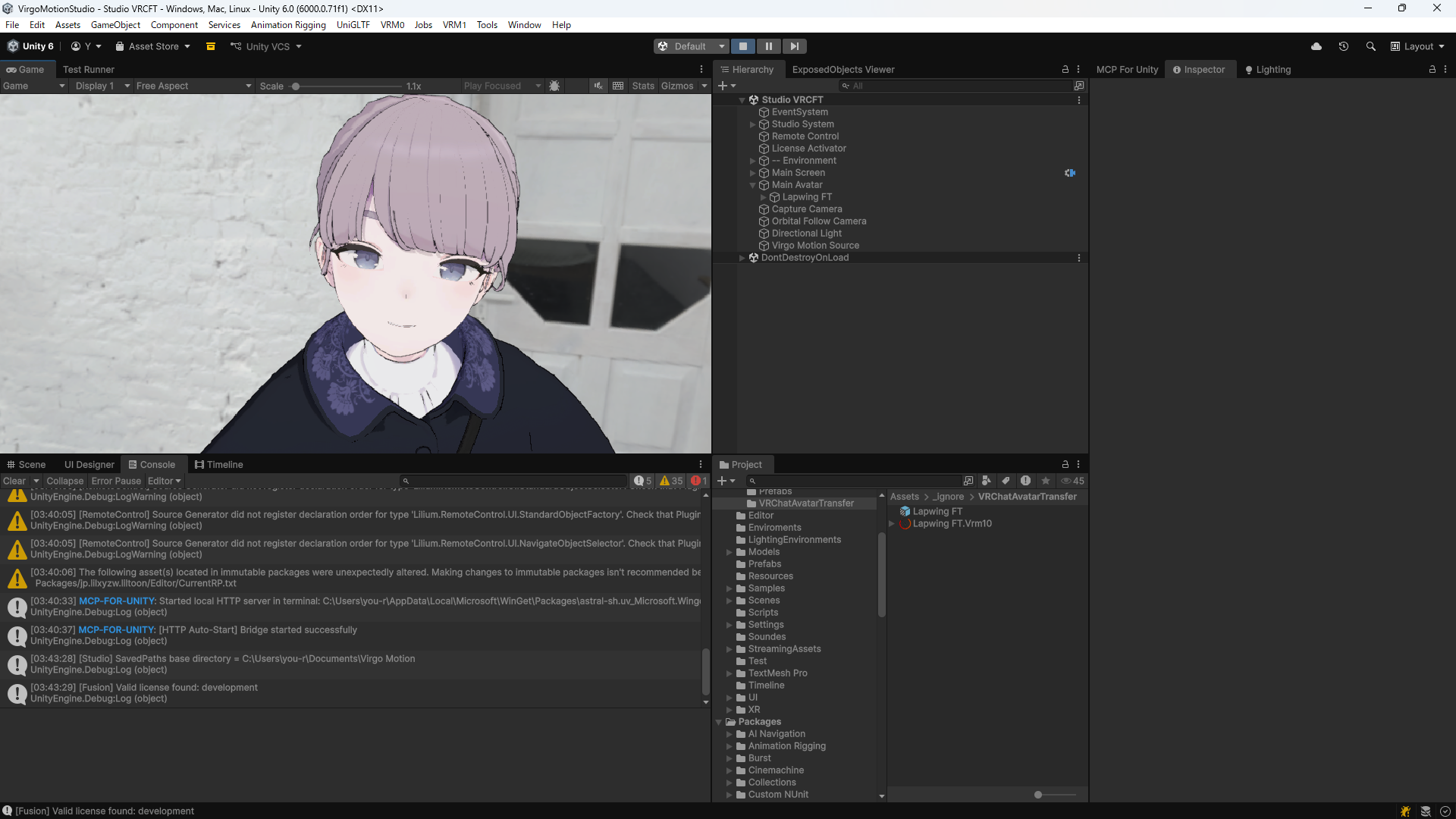
To Use It in the Studio App
To bring it into the Studio app, use the Avatar Bundle (.avatar.lsb) format.
A Studio app version upgrade may make the file unloadable. In that case, re-export it using the same version of VRChatAvatarTransfer as the Studio app you are using.
1. Export as Avatar Bundle (.avatar.lsb)
If everything works fine, press the Export as Avatar Bundle (.avatar.lsb) button to write out the .avatar.lsb file.
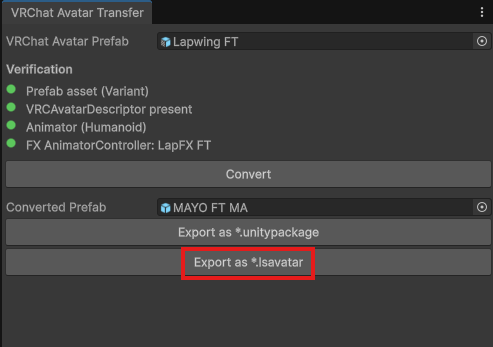
2. Load It in the Streaming App
Launch the Studio app. In the scene, press the Model File selection button on Main Avatar and choose the exported .avatar.lsb file.
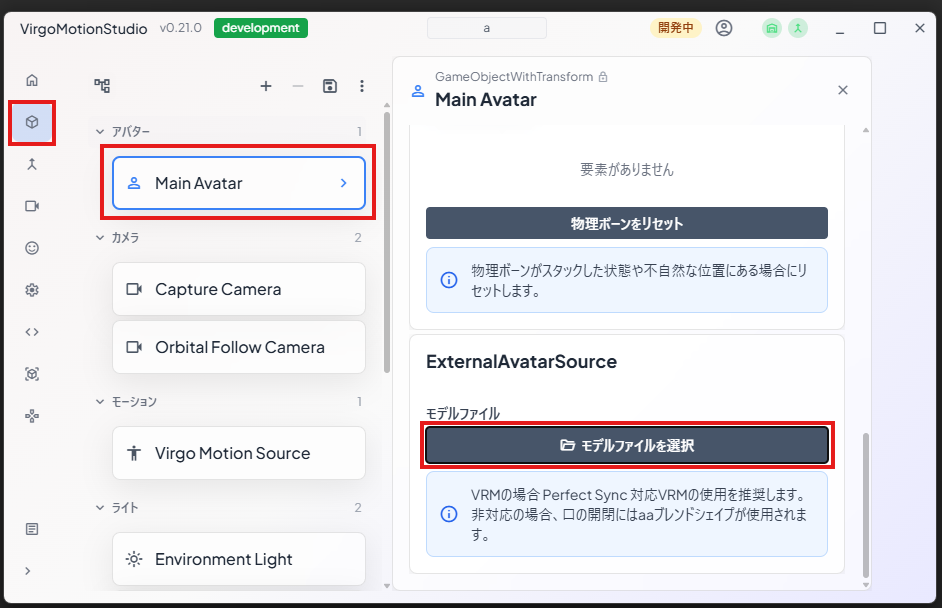
Embed It into Your Original Streaming App
The VRChat SDK has terms that prohibit using it in apps other than VRChat. If you build your original app as is, the VRChat SDK will be included in the app. Since this violates the terms, you need to create a separate project that does not contain the VRChat SDK and bring the converted avatar into it.
1. Export as UnityPackage
If everything works fine, press the Export as UnityPackage button to write out the UnityPackage file.
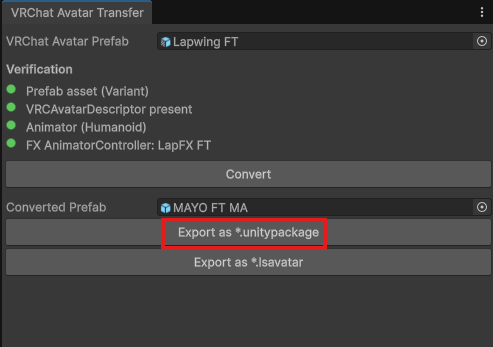
2. Create the App Project
Following Build a VTuber Streaming App, duplicate VirgoMotionStudioTemplate to create a project.
3. Import the Avatar into the Project
Import the exported .unitypackage into the project.
When you import the avatar, some components may end up in a Missing state. This interferes with editing, so select the affected prefab and choose Lilium Live Studio > Remove Missing Scripts from the right-click menu to remove the components in the Missing state.
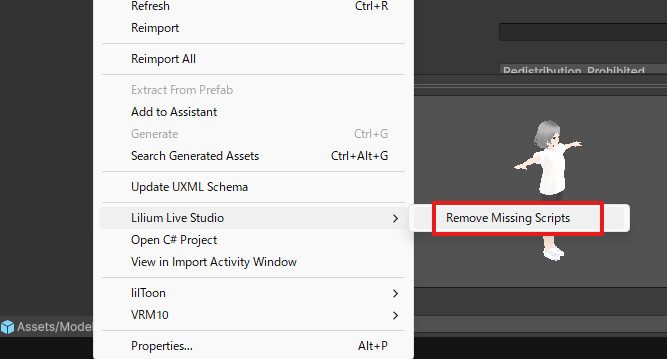
4. Place the Avatar in the Scene
Open StudioScene.unity.
Place the configured prefab under Main Avatar.
Press Play and verify the behavior.
5. Build the Streaming App
Following Build a VTuber Streaming App, build and create the app.
Verified Avatars
- Lapwing - Face Tracking Add-on / Lapwing
- Mayo / まよ Face Tracking / 顔追跡 Addon / 【オリジナル3Dモデル】 Mayo / まよ / ver.1.01
- 3+1(さん↑ぷらす→うの↑)【オリジナル3Dモデル】
Related Links
- VRChat Avatar Transfer Conversion Details — List of conversions performed internally when Convert is pressed
- About VRC FaceTracking — How face tracking is handled and its relation to VRCFT