Expression Settings (PerfectSync)
Expression control has two main types: PerfectSync and Preset. This type is automatically determined from blend shape information held by the VRM.
This section mainly covers expression control information using PerfectSync-compatible VRM models.
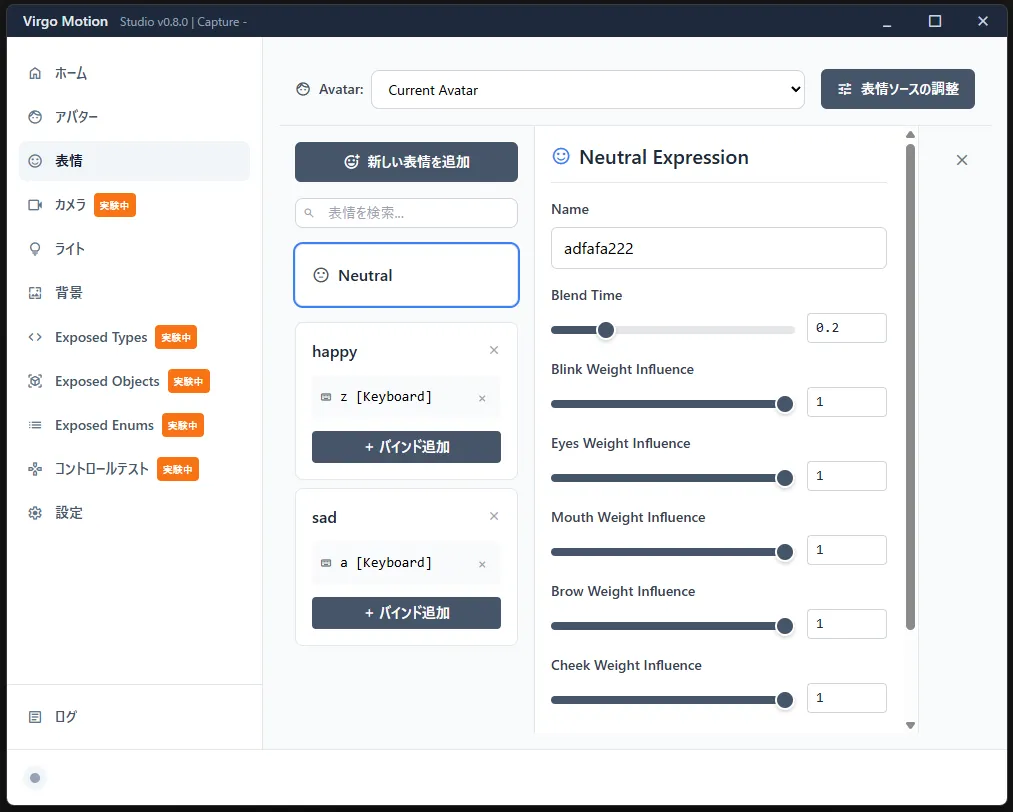
Adding expressions to control
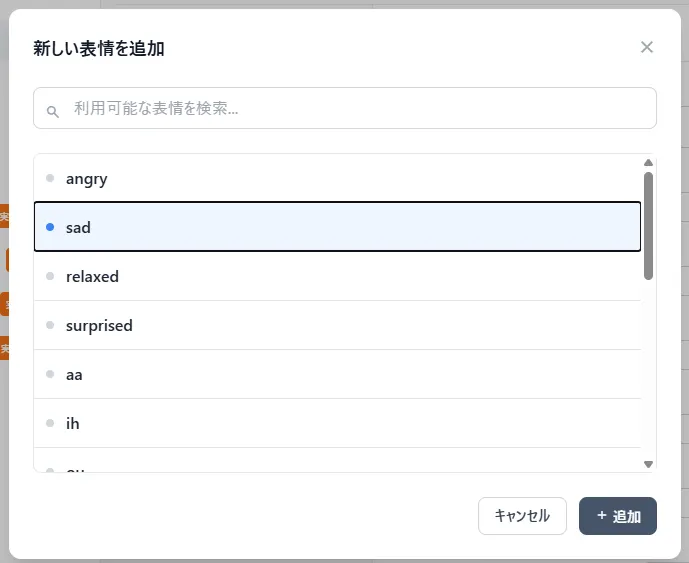
Click the Add new expression button to add expressions you want to control.
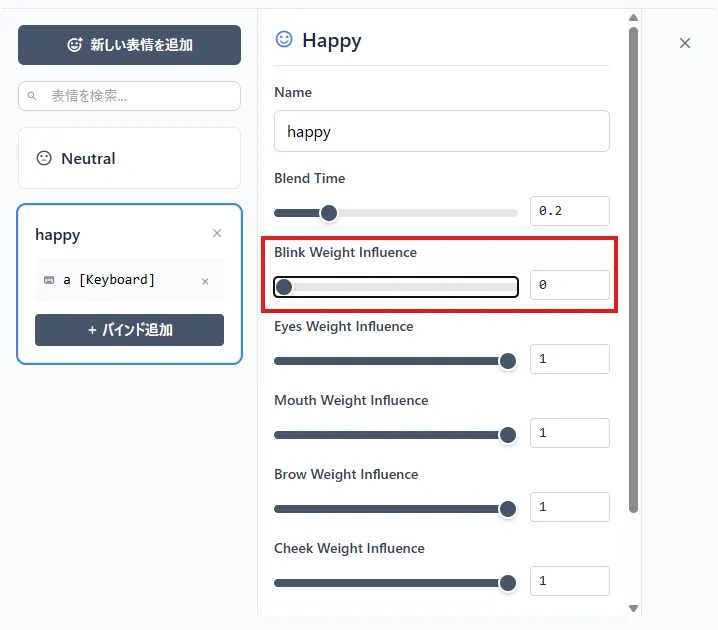
Stop eye movement from capture when happy expression is active
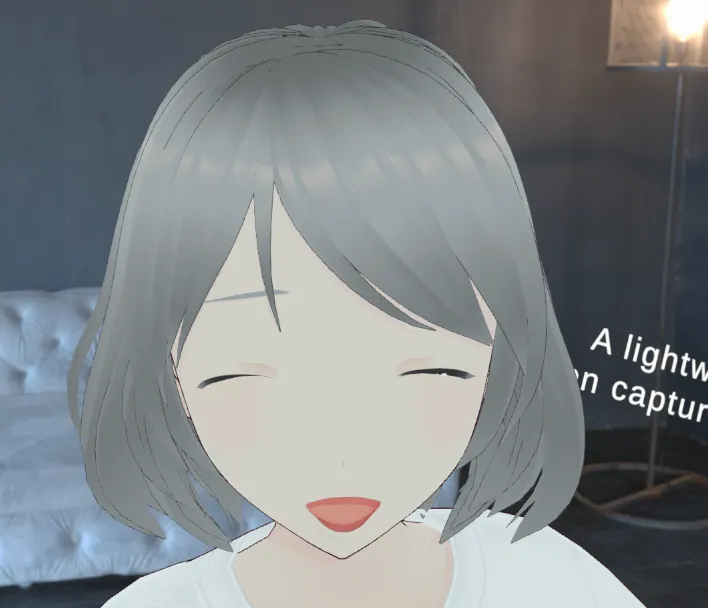
When eyes are closed by blend shapes in expressions like happy, they may interfere with eye opening/closing from capture.
In this case, select the happy expression and set Blink Weight Influence value to 0 to disable eye movement from capture while that expression is applied.
Make mouth move more with small movements
Click the Capture Source Adjustment button at the top right. Click the + button next to Adjustments. Click the item that appears.
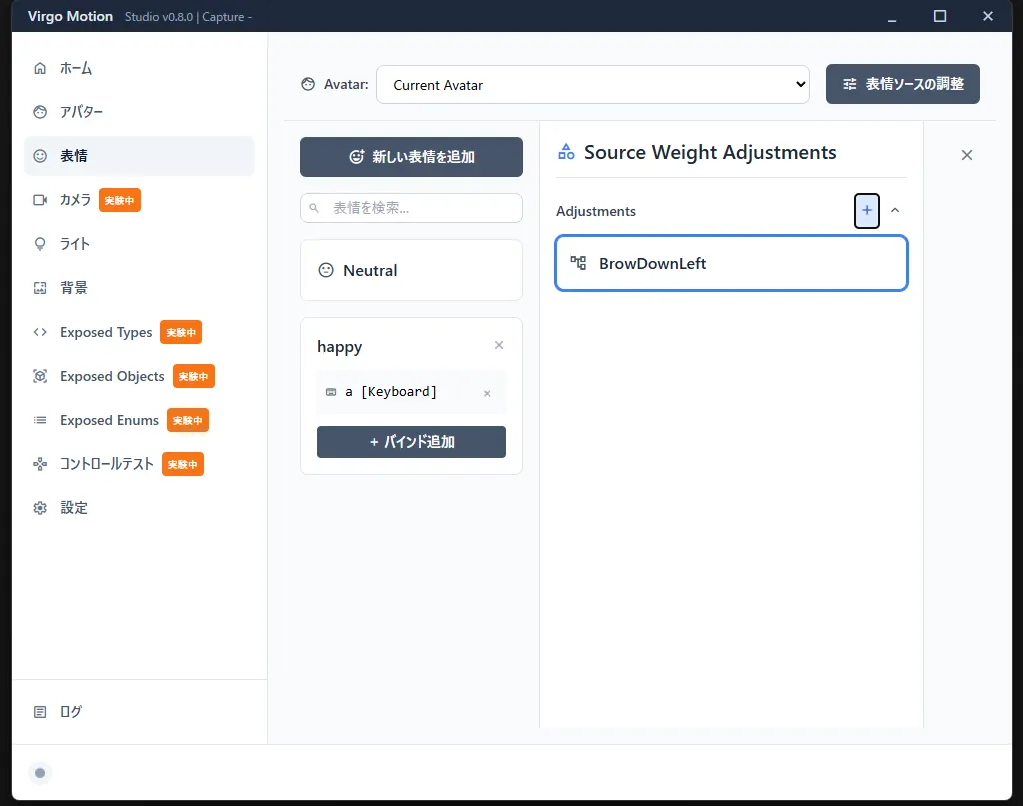
Set Name to JawOpen and adjust Input Value Max to around 0.5. The avatar's mouth will move more with small mouth movements.
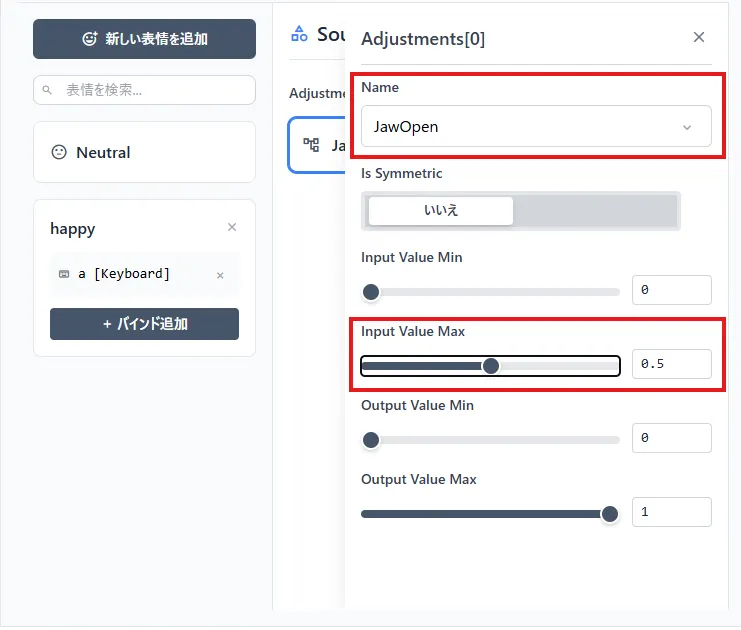
Settings in Expression Source Adjustment are applied to all expressions.
Eyelids get buried when closing eyes strongly
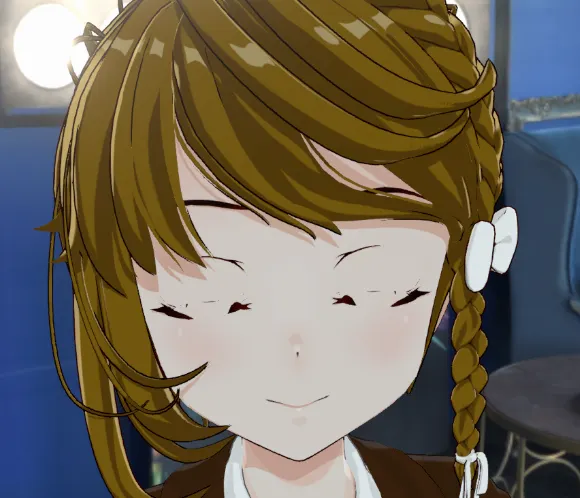
When closing eyes with force, eyelids may get buried. Handle this by zeroing out the influence of the relevant weight from capture source.
Click the Capture Source Adjustment button at the top right. Click the + button next to Adjustments. Click the item that appears.
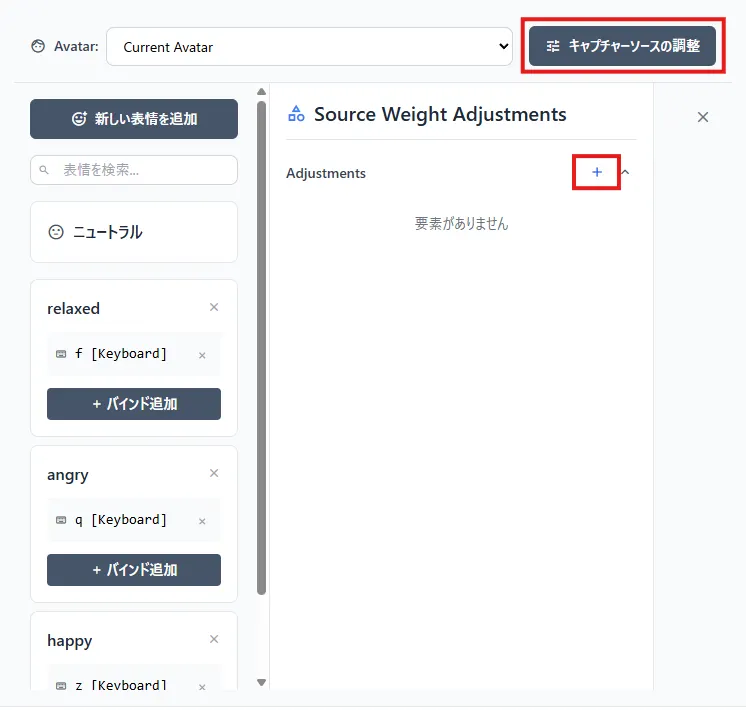
Set OutputValueMax to 0.5 to suppress lower eyelid movement. Also, enabling IsSynmetric applies the same adjustment parameters to both sides. Setting one side applies the same adjustment to the other.
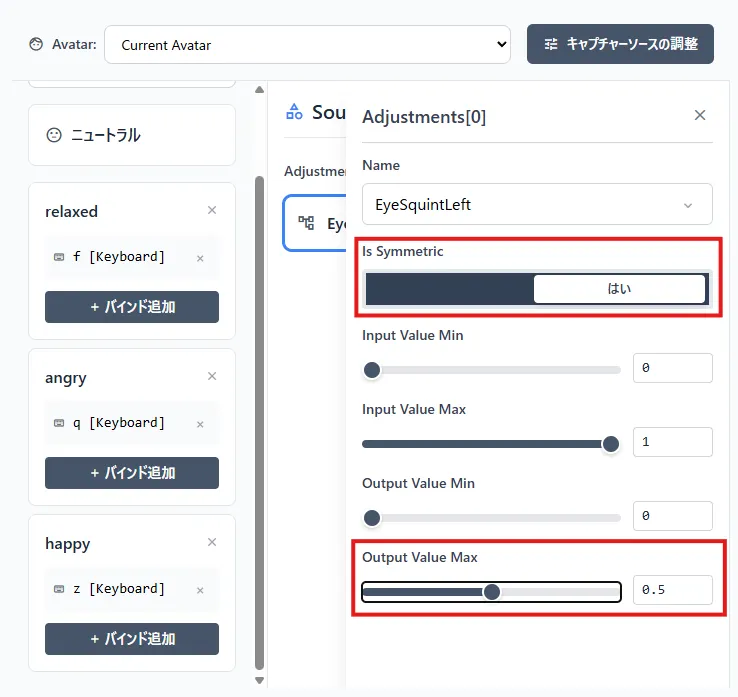
Suppressing lower eyelid movement prevents burial.
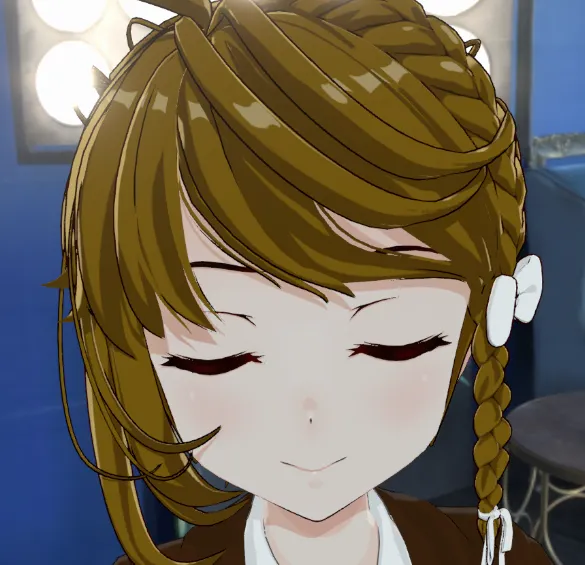
Capture source adjustments affect all expressions.
Understanding the flow of expression data
Summary of captured data flow: First, calibration correction is applied, then correction is applied with Adjustments in capture source adjustment. Then, Influence of currently active expressions is multiplied, and finally, Adjustments of each expression are applied for the final output data.
graph TD
  Capture --> CalibrationCorrection -->  CaptureSourceAdjustment  --> ExpressionInfluence --> ExpressionAdjustments --> Output
Understanding Adjustment details
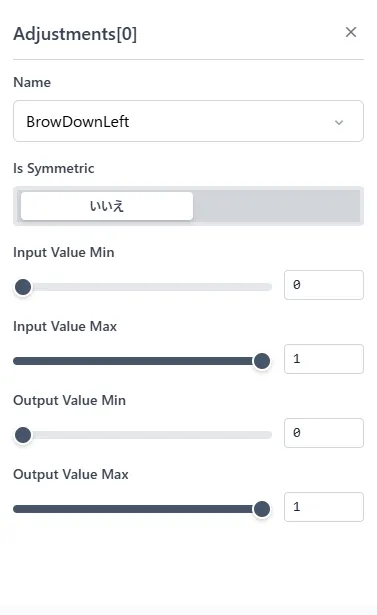
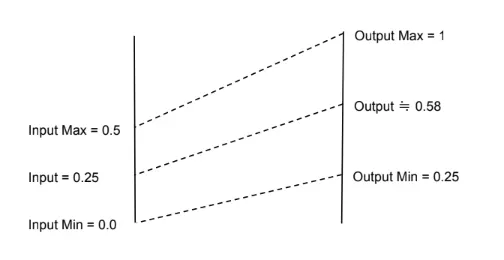
Correction is applied so that input values become Output Value Min at Input Value Min and Output Value Max at Input Value Max. Also, values are clamped by Output Value Max and Output Value Min. Values cannot exceed this range.
Example: With Input Value Min = 0, Input Value Max = 0.5, Output Value Min = 0.25, Output Value Max = 1, an input of 0.25 outputs approximately 0.58.
Enabling IsSynmetric applies the same adjustment parameters to both sides. Setting one side applies the same adjustment to the other.