Best Practices
Known Issues
Face the camera
Tracking is most accurate when your face is directly facing the camera. Looking down or sideways causes the face position to be lost at certain angles, drastically reducing tracking accuracy. Re-tracking causes sudden posture corrections.
Try to keep your face facing the camera as much as possible.
(Improvement planned)
Don't cover your face with hands or objects
Tracking is based on the face. Covering your face with hands or objects causes the face position to be lost and posture to become unstable.
(Improvement planned)
Severe shaking when moving hands
This issue occurs due to iPhone overheating. Using a cooler to reduce iPhone heat prevents this from happening.
(Fix planned)
Streaming Environment
How to fix iPhone
Attach a smartphone holder to fix it. You need to choose equipment that can be used together with a cooler mentioned later.
iPhone placement location
The appropriate distance between iPhone camera and subject is 20cm to 1m. You can place it anywhere as long as it captures the front of the subject, but we recommend fixing it on top of the display.
The camera's view range is displayed directly on screen, so adjust the distance from camera if you want to capture a wider area.
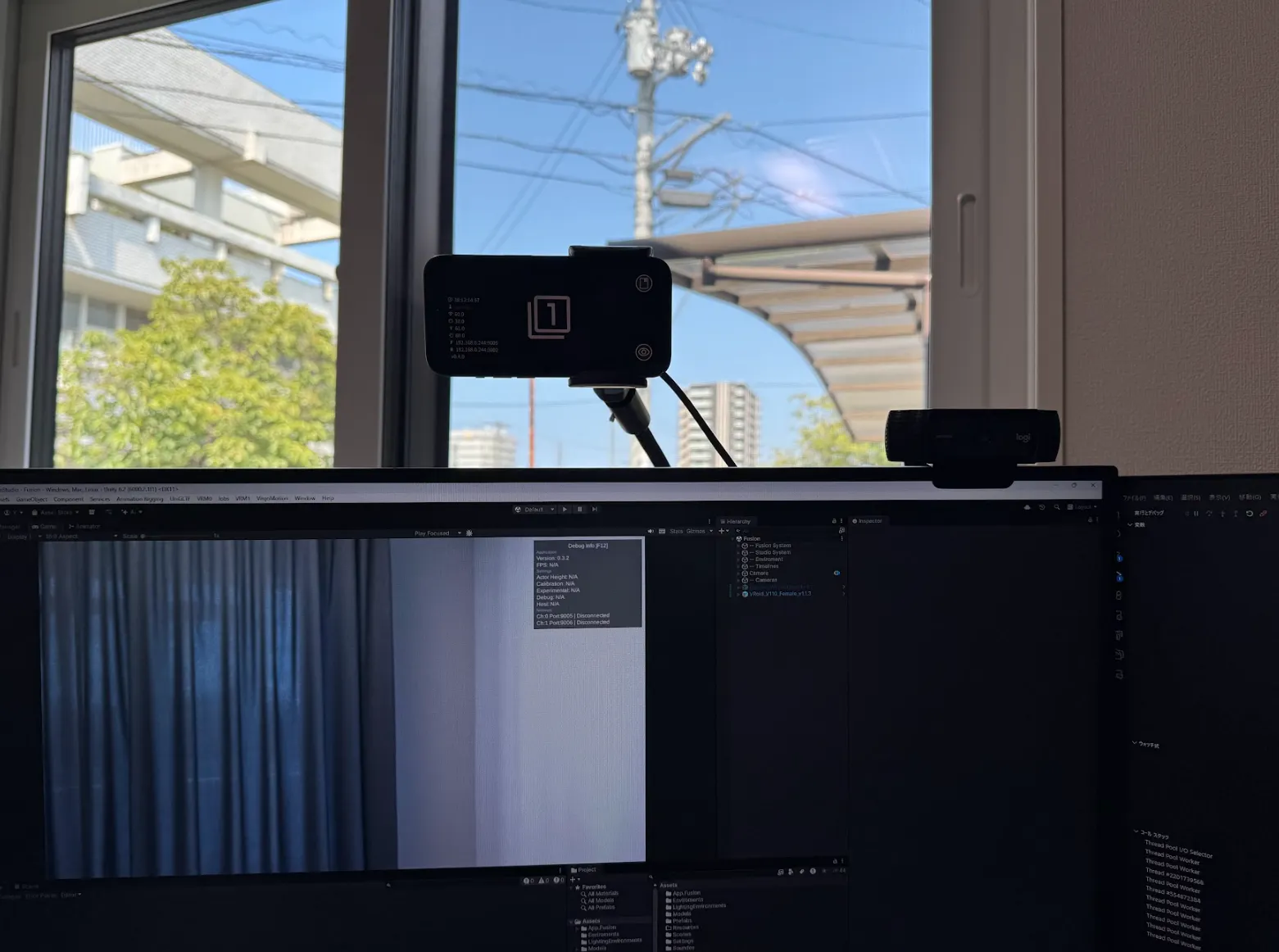
If you want to check the camera's view range
Tap the eye icon at the bottom right of the iPhone app. However, since this increases load, tap the icon again to restore after checking.
FPS drop due to iPhone overheating
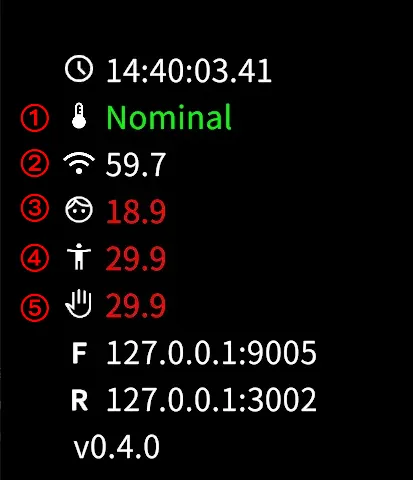
FPS indicates how many times processing can be done per second. Higher values mean more processing and smoother movement.
FPS around 60 produces the best results. Values for communication, face, body, and hand posture analysis are shown. Best state is when close to 60. However, face may stabilize around 30, which is normal.
Internal heating of iPhone causes performance degradation, resulting in FPS drop and choppy movement.
Heat status display:
- Nominal (Good)
- Fair (Caution)
- Serious (Warning)
- Critical (Danger)
Status worsens in this order. During long use, it often stays at Serious, which is within normal range. If Critical is displayed, you should refrain from use.
Using a cooler can prevent FPS degradation.
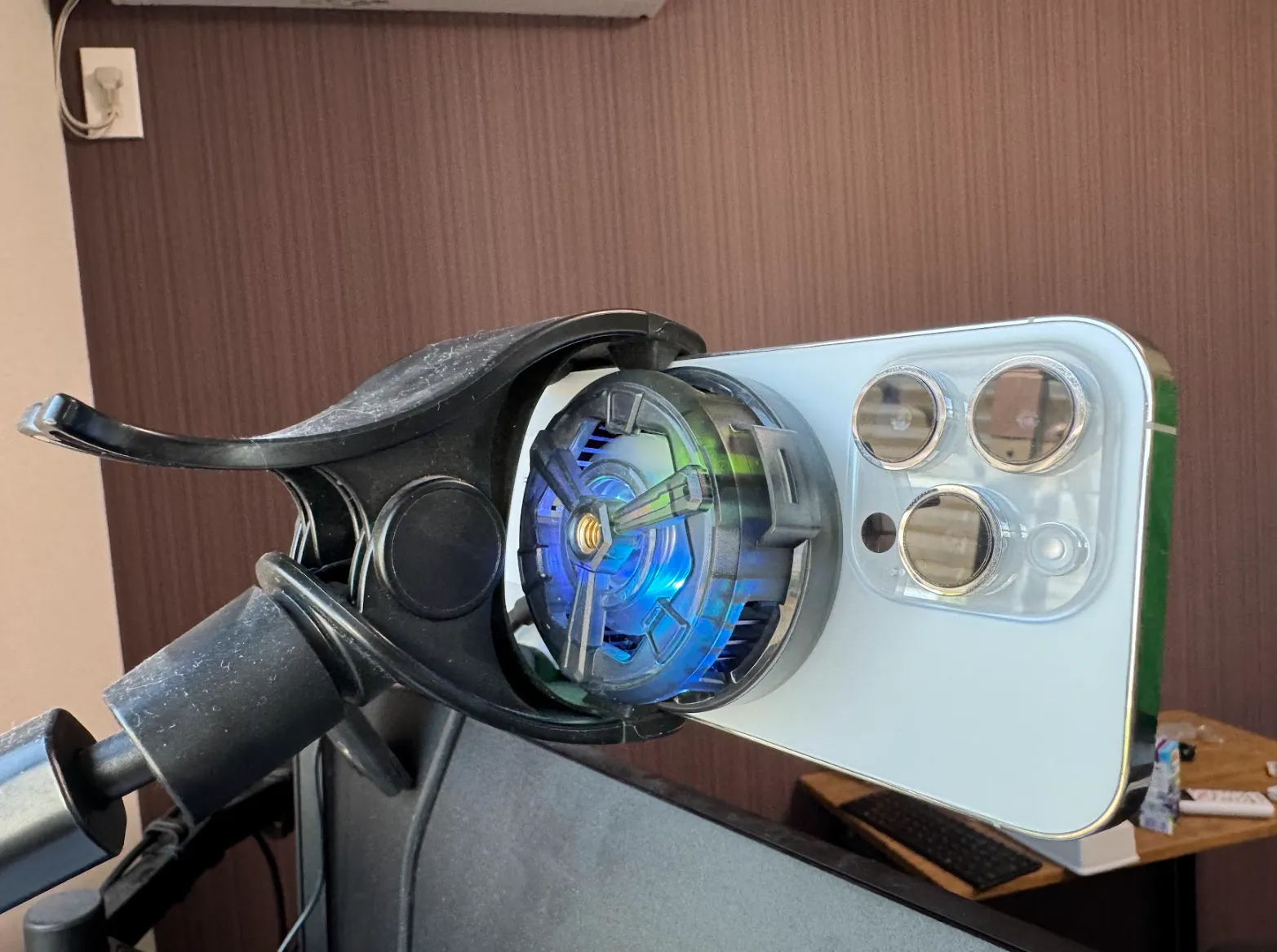
If you cannot reduce heat, switching the capture app to 30FPS will stabilize it, but accuracy will decrease.

Room environment
Cluttered backgrounds cause more shaking. If you feel shaking, tidy up your room. If it still doesn't improve, you need to adjust the layout by placing a screen behind you or having a wall as background.
It's important to create an environment where you can clearly recognize the subject when looking at the camera footage.
Outdoor use is not supported.
Room brightness
Tracking fails if too dark or too bright. Maintain brightness where you can recognize the subject in camera footage. Also, make sure shadows are clearly visible.
Streamer
Clothing
- Clothes that show body lines clearly: T-shirts are preferable to baggy clothes
- Short sleeves: Better than long sleeves
- White: Better than black
- Plain: Better than patterned
Aim for clothing that clearly shows body and arm lines.
Hairstyle
- Keep shoulders visible: Hair covering shoulders creates noise. Better results with hair short or tied up so shoulders are clearly visible.
- Short bangs: Long bangs prevent correct expression recognition. Push up and fix your hair.
Other
- Heavily tinted glasses or sunglasses affect recognition around eyes.
Streaming Posture
Capture around the waist
This software only supports upper body, but capturing around the waist area tends to stabilize posture.
Maintain appropriate distance
Accuracy decreases as distance from camera increases. Maintain a consistent distance from camera. Best distance is about 20cm to 1m.