Avatar Doesn't Move / Doesn't Appear
1. Verify That the License is Valid
If the license is invalid or unset, features may be restricted.
- In the Remote app, go to Settings → License Information and check that the Status is "Valid".
- For how to configure it, see Configure License.
2. Verify That the Same Avatar Works in the VirgoMotion App
Before checking the SDK side, first verify that the same avatar works in the standard VirgoMotion (the official Studio app).
- If it doesn't work in the official app either → the problem is with the avatar itself, or with the capture side
- See Connection Troubleshooting and similar pages
- If it works in the official app → the problem is with the SDK-side setup (continue below)
3. Verify That the Required Components Are Attached to the Avatar
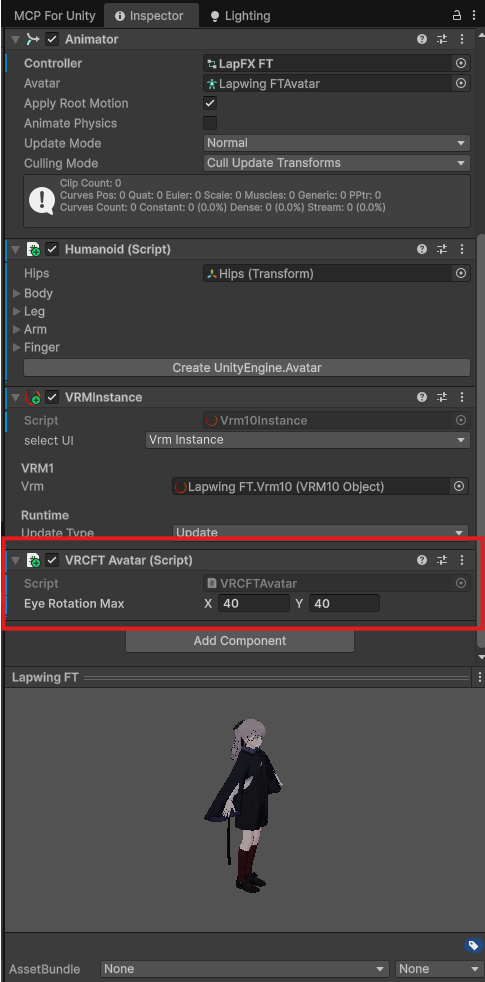
To drive an avatar with the SDK, the components expected by VirgoMotion / LiveStudio must be present on the avatar in the scene.
- The avatar root has an Animator, with a Humanoid avatar assigned
- The avatar root has a
VRCFT Avatar,VRC Avatar, orVRM10 Avatarcomponent assigned.
| Component | Role |
|---|---|
| VRCFT Avatar | For VRCFaceTracking-compatible VRChat avatars. Drives expressions by manipulating Animation parameters in the VRCFT spec (Unified Expressions). |
| VRC Avatar | For VRChat avatars. Selects from a predefined set of expressions. |
| VRM10 Avatar | For VRM1 avatars. Manipulates Preset or PerfectSync-compatible expression keys. |
4. Allow the Capture Ports through Windows Firewall
If the avatar and component settings are correct but motion still isn't reflected, Windows Firewall may be blocking the capture UDP ports. The default inbound policy on Windows is Block, so if the ports aren't allowed, capture data never reaches the Studio and the avatar appears not to move.
The capture ports are allowed automatically when the Fusion app launches, but if you cancel the UAC (administrator) dialog shown at that time, the allow rule is not added. To allow them manually, run the following from the Unity menu:
Tools > Virgo Motion > Allow Capture Ports through Firewall
- Running it adds a rule that allows inbound UDP ports 9005–9010 (capture channels 9005/9006, camera frames 9007, etc.).
- Adding the rule requires administrator privileges, so select "Yes" when the UAC dialog appears.
- If the rule already exists, it shows "already allowed" and the dialog does not appear again.