Expose Parameters to the Remote App
Many features are still experimental and breaking changes may occur.
Simply by adding attributes to Studio-app-side scripts in VirgoMotionStudioTemplate, you can edit values and call functions from the Remote App.
Minimal Example
1. Write a Script
Attach [ExposedClass] and [ExposedField] to a MonoBehaviour.
using UnityEngine;
using Lilium.RemoteControl;

[ExposedClass]
public class MyEffect : MonoBehaviour
{
    [ExposedField]
    public int hoge;
}
2. Add a GameObject and Attach the Script
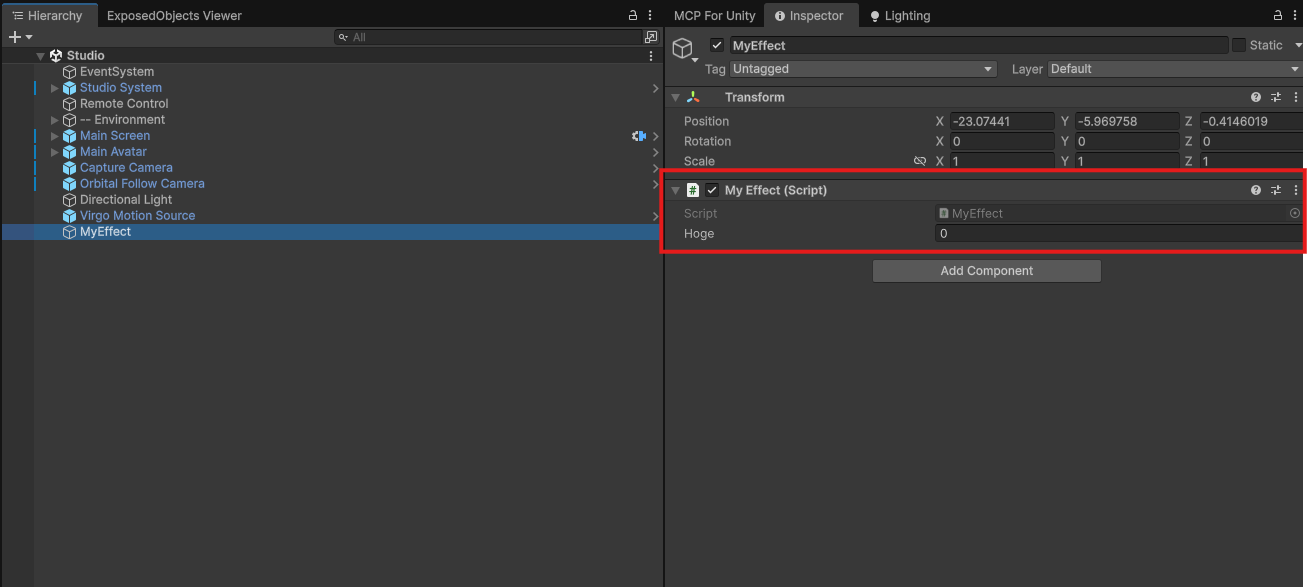
Create an empty GameObject in the Studio scene of VirgoMotionStudioTemplate (or in your own scene) and attach the script above.
3. Register It with RemoteControlProvider
Open the LiveStudioRemoteControl component on the Remote Control GameObject already placed in the scene, and add an entry to the Objects list.
- Press the
+button onObjects, then selectExposedGameObjectfrom the type dropdown - Drag the GameObject created in step 2 into the
Referencefield of that entry
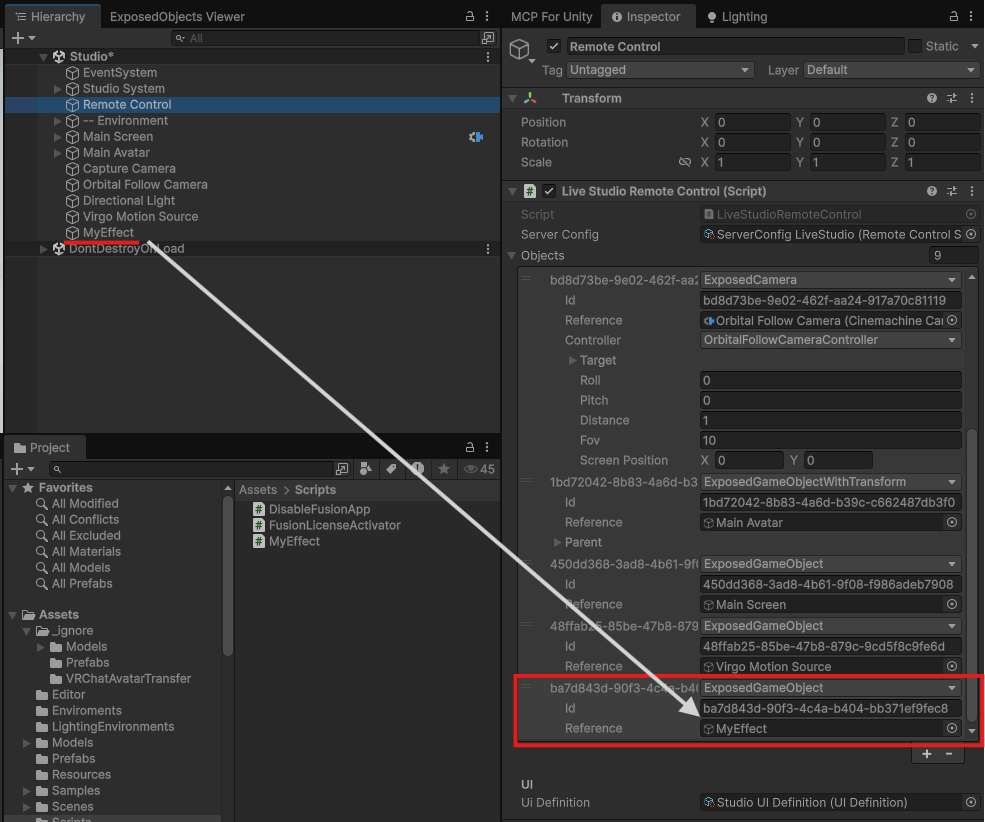
Unless you register it here, simply attaching [ExposedClass] will not make it appear in the Remote App. The Objects list on LiveStudioRemoteControl serves as the entry point for what gets exposed to the Remote App.
4. Verify the Behavior
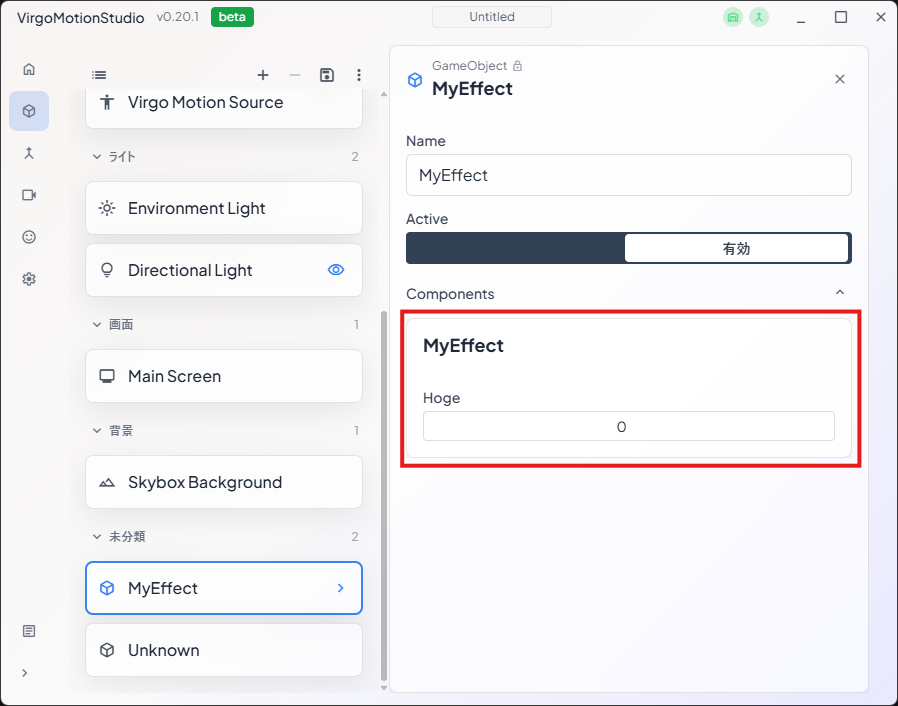
Press Play in the Unity Editor, or launch the built app and connect from the Remote App. MyEffect will appear on the Remote App's "Scene" page, and the hoge field will be shown as an integer input. Changing the value is reflected immediately and is also saved to *.live.json.
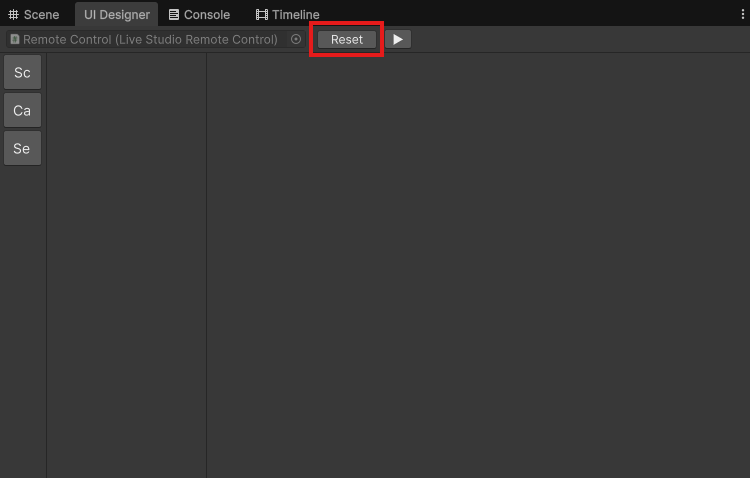
The [ExposedField] and other attributes you add may not be recognized correctly on the Remote App side. In that case, stop Play mode, then press the Reset button in Window > Lilium Remote Control > UI Designer and re-enter Play mode.
Choosing Between Attributes
| Attribute | Target | Purpose |
|---|---|---|
[ExposedClass] | class / struct | Registers this type as a target to expose to the Remote App |
[ExposedField] | field | Exposes a field and makes it editable |
[ExposedProperty] | property | Exposes a property and makes it editable (use when you want a side effect in the setter) |
[ExposedFunction] | method | Exposes a parameterless method as a button |
[ExposedEnum] | enum | Required to display enum values as a dropdown |
[ExposedHelp("...")] | any of the above | Shows help text in the Remote App |
[Hide] | field / property | Hides an already-exposed member from the Remote App UI |
[ExposedField] is sufficient in most cases. Only when you want to run logic on value change should you use [ExposedProperty] + setter, with internal state held in a separate [ExposedField, Hide] — that pattern is common.
Customize How Values Are Displayed
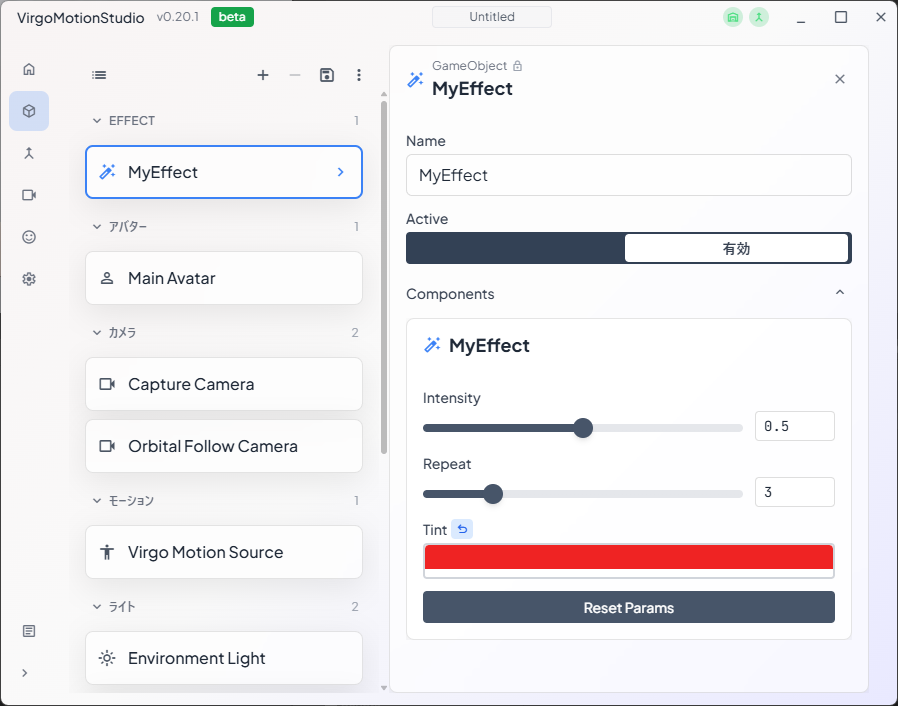
Numeric sliders, labels, display order, and so on can be controlled via attributes.
using UnityEngine;
using Lilium.RemoteControl;

[ExposedClass(Category = "Effect", Icon = "auto_fix_high")]
public class MyEffect : MonoBehaviour
{
    [ExposedField, Slider(0f, 1f, 0.01f)]
    public float intensity = 0.5f;

    [ExposedField, Slider(1, 10)]
    public int repeat = 3;

    [ExposedField]
    public Color tint = Color.white;

    [ExposedFunction(label = "Reset")]
    public void ResetParams()
    {
        intensity = 0.5f;
        repeat = 3;
        tint = Color.white;
    }
}
| Attribute | Effect |
|---|---|
[Slider(min, max, step)] | Displays a numeric value as a slider |
ExposedClass(Icon = "...") | Specifies a Material Icons icon name |
order | Display order (negative comes earlier, positive comes later) |
Expose enum Values as Choices
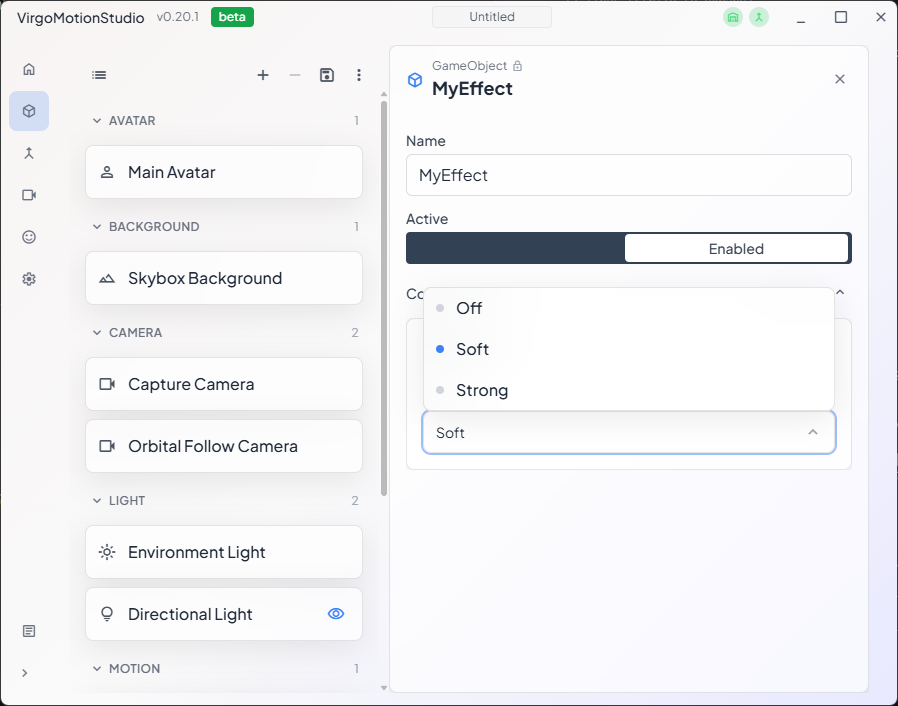
For a field of an enum type, the enum itself must have [ExposedEnum] attached.
using UnityEngine;
using Lilium.RemoteControl;

[ExposedEnum]
public enum EffectMode
{
    Off,
    Soft,
    Strong,
}

[ExposedClass]
public class MyEffect : MonoBehaviour
{
    [ExposedField]
    public EffectMode mode = EffectMode.Soft;
}
Conditional Display
ShowIf / HideIf let you control visibility based on the value of another field.
[ExposedField]
public bool useColor;

[ExposedField, ShowIf(nameof(useColor), true)]
public Color color = Color.white;
Exclude from Persistence
Adding [ExposedField(persistable = false)] exposes the value to the Remote App but excludes it from being saved to *.live.json. Use this for one-off experimental values or values that should reset on every launch.
Adding, type-changing, or renaming exposed members can break compatibility with previously saved *.live.json files. When renaming, attach [FormerlyExposedAs("oldName")] to keep restoration from the old name working.
Related Links
- SDK Components — The structure of the SDK, including the
RemoteControlpackage